> ## Documentation Index
> Fetch the complete documentation index at: https://docs.landing.ai/llms.txt
> Use this file to discover all available pages before exploring further.
# Parse in the Playground
> Parse documents with DPT-3 in the Playground, no code required.
export const dpt3pro = 'DPT-3 Pro';
export const dpt3 = 'DPT-3';
export const parseDpt3 = 'Parse';
export const ade = 'Agentic Document Extraction';
Use the [Playground](https://ade.landing.ai/) to upload a document, see what the [Parse v2 API](https://docs.landing.ai/api-reference/parse/ade-parse) returns, and copy a ready-to-use API snippet before you write any code.
## Parse a Document in the Playground
To parse a document with {dpt3}:
1. Go to the [Playground](https://ade.landing.ai/).
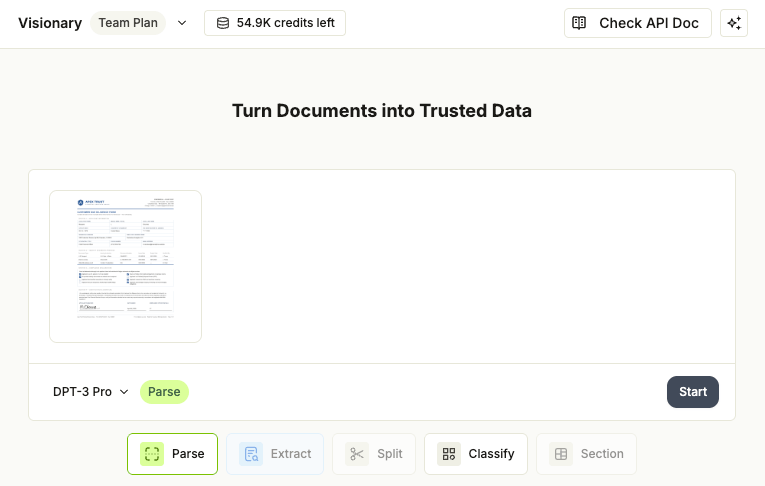
2. In the upload card, click the model drop-down menu and select **DPT-3 Pro**.
3. Drag and drop your file into the upload area, or click to choose a file.
4. Click **Start**. The Playground processes the file and opens the project view with the parse results.
 ## Review the Results
The parse results open in the Parse tab of the project view:
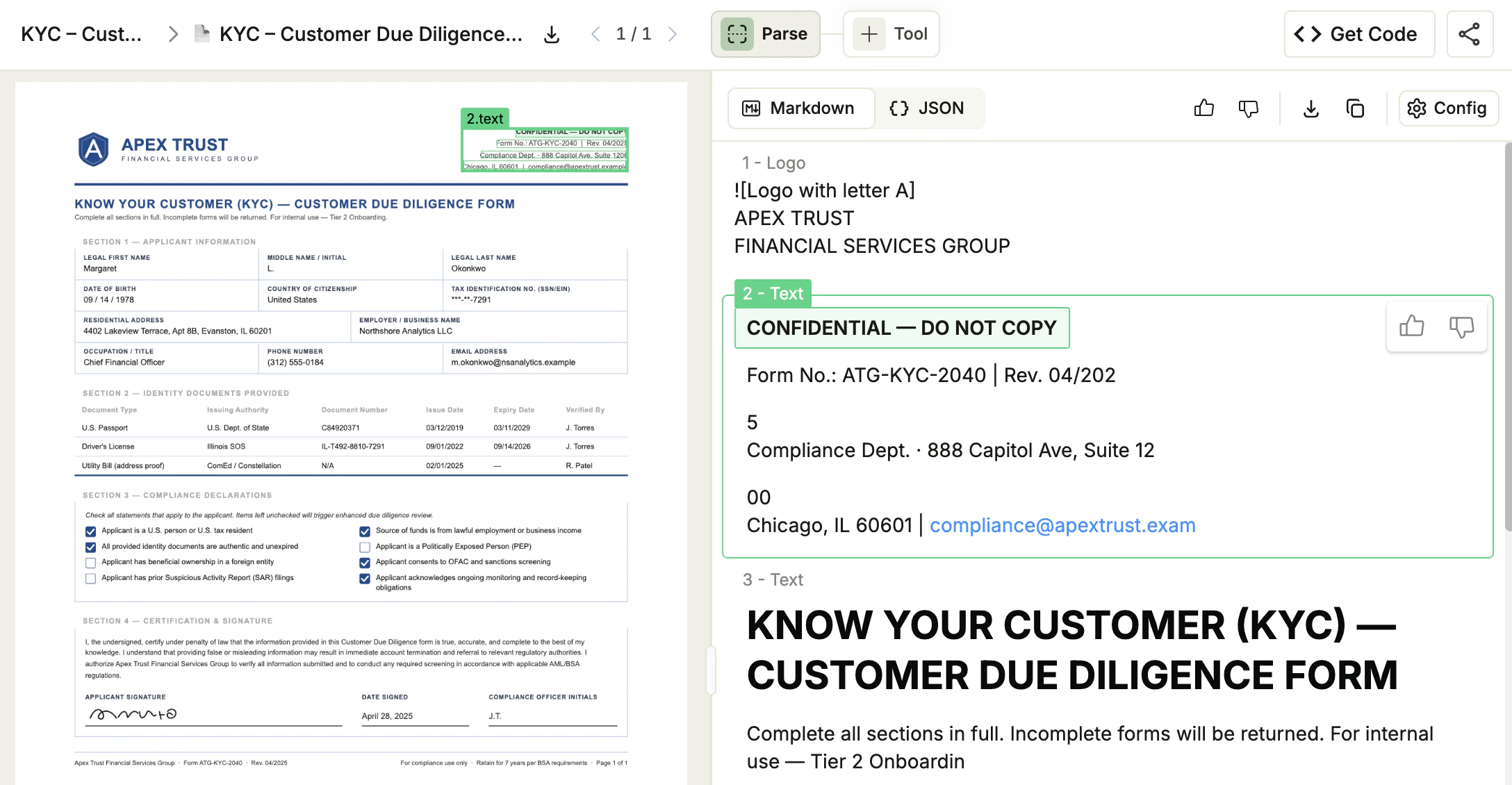
* **Markdown view (default):** The reading-order Markdown rendering of your document. Use this for quick visual review or to copy into a downstream tool.
* **JSON view:** The full response payload. Use this view to inspect block ids, ranges, and grounding coordinates.
* **Click a block** in either view to highlight its bounding box on the document preview on the left.
* Use the **Download** and **Copy** buttons in the toolbar above the result to save or paste the current view.
For a complete reference on what each response field contains, see [Parse API Response](./parse-response).
## Review the Results
The parse results open in the Parse tab of the project view:
* **Markdown view (default):** The reading-order Markdown rendering of your document. Use this for quick visual review or to copy into a downstream tool.
* **JSON view:** The full response payload. Use this view to inspect block ids, ranges, and grounding coordinates.
* **Click a block** in either view to highlight its bounding box on the document preview on the left.
* Use the **Download** and **Copy** buttons in the toolbar above the result to save or paste the current view.
For a complete reference on what each response field contains, see [Parse API Response](./parse-response).
 ## Customize the Parse Output with Config
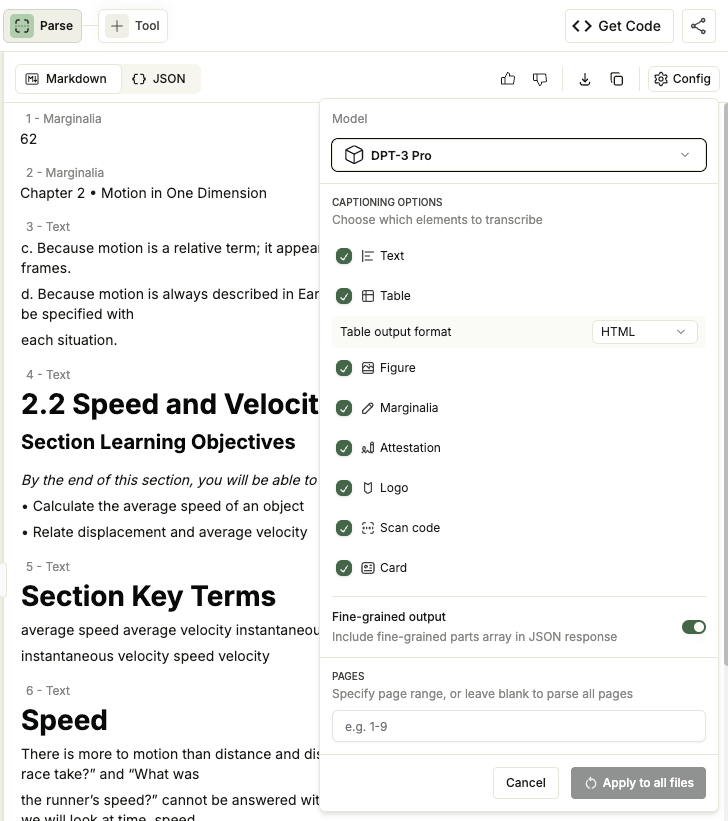
To change how {dpt3pro} parses your files, open the **Config** drop-down menu on the Parse tab and update the settings. These controls set the same values as the API's [`options` field](./parse-input#request-options).
After you adjust the options, click **Apply to all files** to reparse with the new settings.
* **Captioning options:** Choose which block types are included in the Markdown (Text, Table, Figure, Attestation, Marginalia, Card, and Scan code). All are on by default. Clearing one drops that block type's content from the Markdown, but the block still appears in the JSON structure and grounding.
* **Table output format:** Choose **HTML** (default) or **Markdown** for how tables appear in the Markdown output. This control appears only while **Table** captioning is on.
* **Fine-grained output:** Include the per-line grounding detail (the `atomic_grounding` array) with each block. On by default.
* **Pages:** Enter the pages to parse (for example, `1-3`) to process only part of the document. The Playground and the API's `options.pages` field both use 1-based page numbers.
## Customize the Parse Output with Config
To change how {dpt3pro} parses your files, open the **Config** drop-down menu on the Parse tab and update the settings. These controls set the same values as the API's [`options` field](./parse-input#request-options).
After you adjust the options, click **Apply to all files** to reparse with the new settings.
* **Captioning options:** Choose which block types are included in the Markdown (Text, Table, Figure, Attestation, Marginalia, Card, and Scan code). All are on by default. Clearing one drops that block type's content from the Markdown, but the block still appears in the JSON structure and grounding.
* **Table output format:** Choose **HTML** (default) or **Markdown** for how tables appear in the Markdown output. This control appears only while **Table** captioning is on.
* **Fine-grained output:** Include the per-line grounding detail (the `atomic_grounding` array) with each block. On by default.
* **Pages:** Enter the pages to parse (for example, `1-3`) to process only part of the document. The Playground and the API's `options.pages` field both use 1-based page numbers.
 ## Get a Ready-to-Use Code Snippet
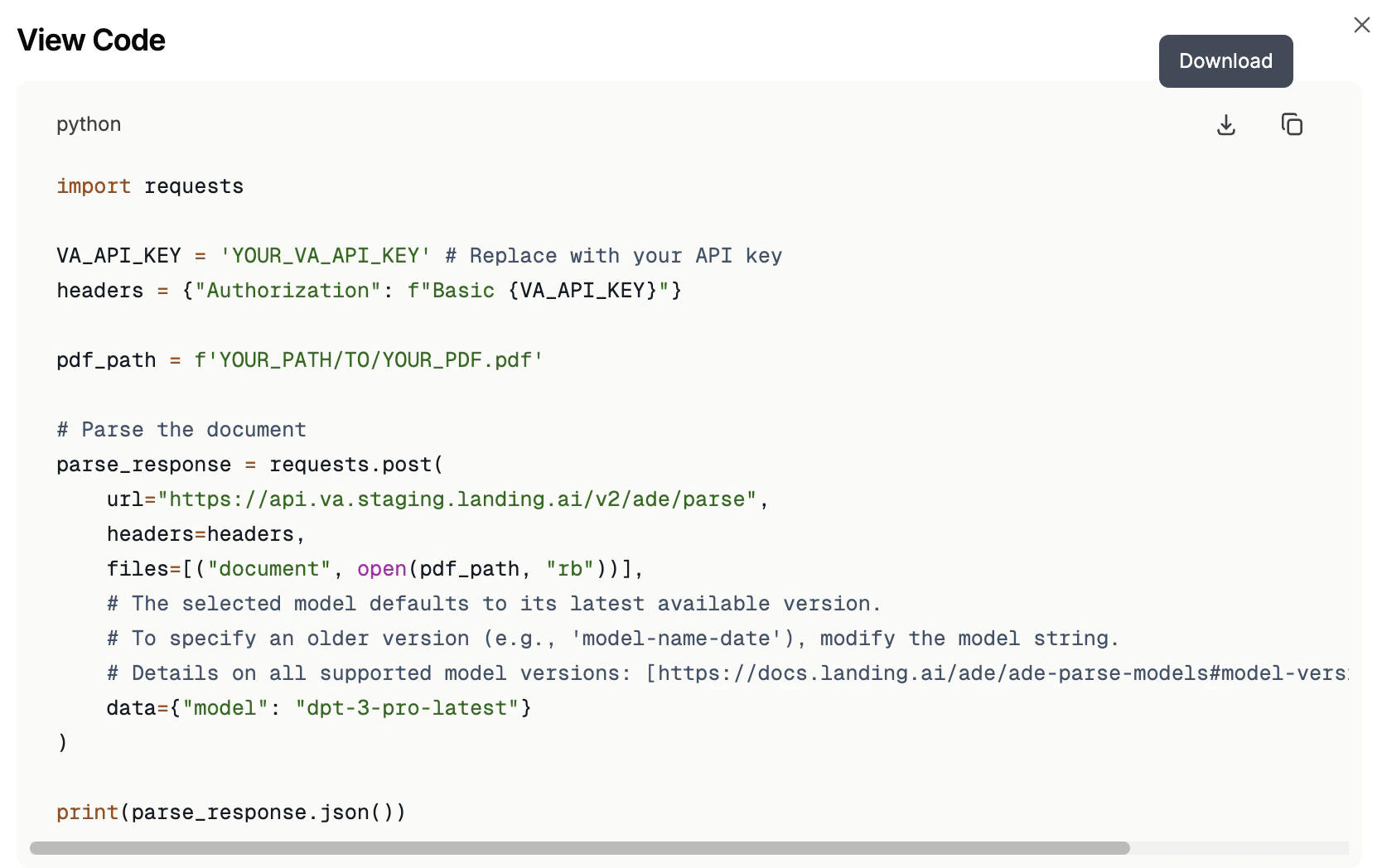
When the parse results match what you need, click **Get Code** in the project header to open a Python snippet that reproduces the call against the API. Copy it into your own project to parse the same document, or any other, from code.
## Get a Ready-to-Use Code Snippet
When the parse results match what you need, click **Get Code** in the project header to open a Python snippet that reproduces the call against the API. Copy it into your own project to parse the same document, or any other, from code.