> ## Documentation Index
> Fetch the complete documentation index at: https://docs.landing.ai/llms.txt
> Use this file to discover all available pages before exploring further.
# API Key
> Create an API key and set it for the client libraries or direct API calls.
export const ade = 'Agentic Document Extraction';
Calling the {ade} API requires an API key.
* [Get your API key](#get-your-api-key)
* [Set your API key when using a library](#set-your-api-key-when-using-a-library)
* [Set your API key when calling the API directly](#set-your-api-key-when-calling-the-api-directly)
## Get Your API Key
If using {ade} in the EU, get your API key [here](https://ade.eu-west-1.landing.ai/settings/api-key).
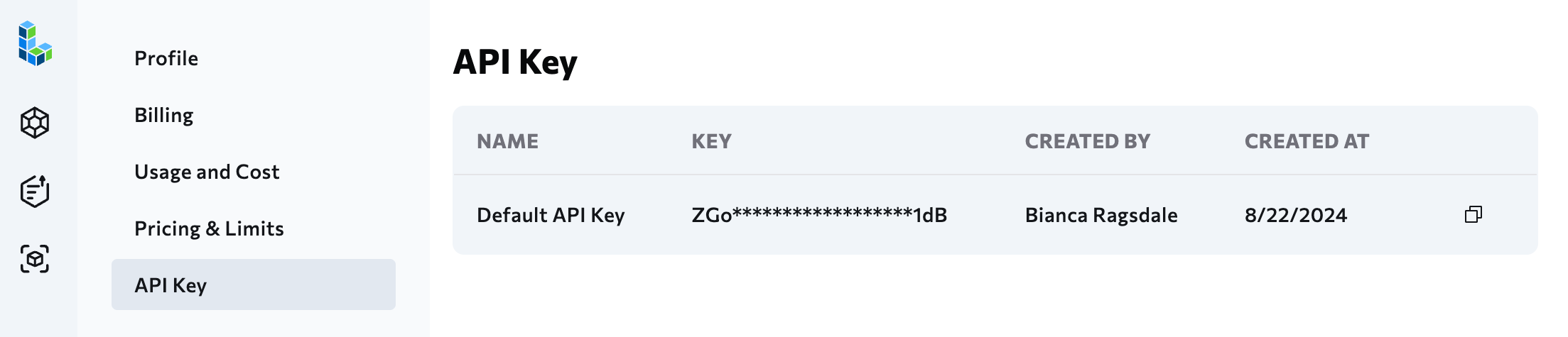
Get your API key on the [API Key](https://ade.landing.ai/settings/api-key) page:
1. Log in to [https://ade.landing.ai/](https://ade.landing.ai/).
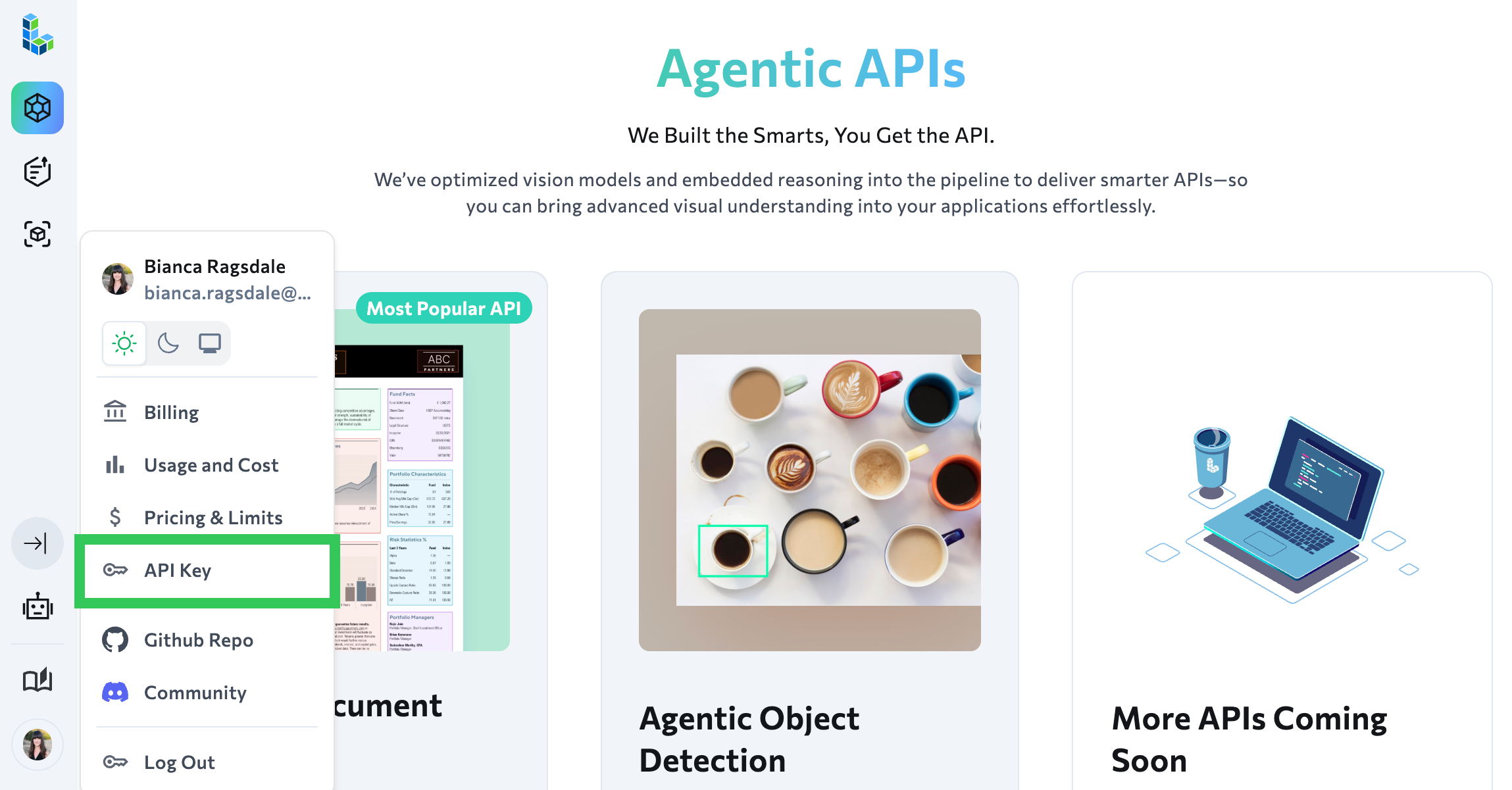
2. Go to the [API Key](https://ade.landing.ai/settings/api-key) page (to navigate there manually, click your profile icon at the bottom left corner of the page and click **API Key**).
 3. If you're on a subscription plan, you can [create an API key](#create-api-keys) if needed.
4. Click the **Copy** icon to copy your API key.
3. If you're on a subscription plan, you can [create an API key](#create-api-keys) if needed.
4. Click the **Copy** icon to copy your API key.
 ## Personal Plans (Explore Plans) Have One API Key
The personal plan (the "Explore" plan) only has one API key. This API key cannot be deleted or revoked.
The Explore plan type is designed for testing, prototyping, and hobby use. If you'd like to deploy to production and need more granular API key management, like the ability to create and revoke API keys, [upgrade](/ade/ade-pricing) to a subscription plan.
If your API key is exposed or leaked and you'd like to request a new API key, contact [support@landing.ai](mailto:support@landing.ai)
## Create API Keys
If you are on a Team or Enterprise plan, you can create multiple API keys for your organization to use.
To create an API key:
1. Log in to [https://ade.landing.ai/](https://ade.landing.ai/).
2. Go to the [API Key](https://ade.landing.ai/settings/api-key) page (to navigate there manually, click your profile icon at the bottom left corner of the page and click **API Key**).
3. If you're not currently in the correct organization, select your organization from the drop-down menu.
4. Click **Create Key**.
5. Enter a brief, descriptive name for the API key in the key name field.
6. Click **Create API Key**.
7. Click the **Copy** icon to copy the API key.
8. Click **Done** to close the pop-up.
## Revoke API Keys
If you are on the Team or Enterprise plan, you can revoke API keys. A user with the Admin role can revoke any API key. A user with the Developer role can revoke only API keys they have created.
To revoke an API key:
1. Log in to [https://ade.landing.ai/](https://ade.landing.ai/).
2. Go to the [API Key](https://ade.landing.ai/settings/api-key) page (to navigate there manually, click your profile icon at the bottom left corner of the page and click **API Key**).
3. If you're not currently in the correct organization, select your organization from the drop-down menu.
4. Locate the row for the API key. (You may need to search to narrow down the list of API keys.)
5. Click the **Settings** button (ellipses) and select **Revoke API Key**. Follow the on-screen prompts to complete the process.
## Set Your API Key When Using a Library
The Python and TypeScript libraries read your API key from the `VISION_AGENT_API_KEY` environment variable. For installation and other ways to set the key, see the [Python](./ade-python) or [TypeScript](./ade-typescript) library page. Set the key before running your code:
```bash macOS/Linux theme={null}
export VISION_AGENT_API_KEY=""
```
```cmd Windows (Command Prompt) theme={null}
set "VISION_AGENT_API_KEY="
```
```powershell Windows (PowerShell) theme={null}
$env:VISION_AGENT_API_KEY=""
```
## Set Your API Key When Calling the API Directly
Include the API key in request headers. To see code samples, go to [API](https://docs.landing.ai/api-reference/parse/ade-parse).
## Security Best Practices
* Do not hard-code the API key in your source code, because others could see and use your API key. Passing a variable that holds the key (for example, from a secrets manager) is fine.
## Troubleshoot API Key Issues
Use the troubleshooting tips in this section to resolve issues related to API keys.
### Error: Missing API Key
If no API key is set by any method, the library raises an error when you create the client.
The Python library raises this error:
```text theme={null}
landingai_ade.LandingAiadeError: The apikey client option must be set either by passing apikey to the client or by setting the VISION_AGENT_API_KEY environment variable
```
The TypeScript library throws this error:
```text theme={null}
LandingAIADEError: The VISION_AGENT_API_KEY environment variable is missing or empty; either provide it, or instantiate the LandingAIADE client with an apikey option, like new LandingAIADE({ apikey: 'My Apikey' }).
```
To resolve this issue, set the key using one of the supported methods. If you set the key in a `.env` file or as an environment variable and still get this error, see the .env File Issues and Environment Variable Issues sections.
### .env File Issues
If you set the API key in the `.env` file but the environment variable is not loading, try these possible solutions to resolve this issue:
* Check file location: The `.env` file should be in the same directory where you run your script.
* Verify file format: No spaces around the equals sign:
```
# Correct
VISION_AGENT_API_KEY=
# Incorrect
VISION_AGENT_API_KEY =
```
### Environment Variable Issues
If you set the API key as an environment variable and are encountering issues, try these possible solutions to resolve this issue:
* Restart your application after setting environment variables.
* Check variable name: Must be exactly `VISION_AGENT_API_KEY`.
* Check if the environment variable is correct:
```bash macOS/Linux theme={null}
echo $VISION_AGENT_API_KEY
```
```cmd Windows (Command Prompt) theme={null}
echo %VISION_AGENT_API_KEY%
```
```powershell Windows (PowerShell) theme={null}
$env:VISION_AGENT_API_KEY
```
* Ensure that you apply the changes after setting, changing, or removing the environment variable:
* **Linux/macOS**: Restart your terminal. If you added the variable to your `.zshrc` file, run `source ~/.zshrc`.
* **Windows**: Close and reopen Command Prompt/PowerShell, or restart your IDE.
### Error: Missing Authorization Header
This error occurs if the authorization header is not included when calling the API directly. To fix this, include the API header:
```python theme={null}
headers = {"Authorization": f"Bearer {api_key}"}
```
### Error: User Not Found, Please Check Your API Key
This error occurs when the API key is entered incorrectly.
To resolve this issue:
* Verify the API key: Copy your key directly from the [dashboard](https://ade.landing.ai/settings/api-key).
* Restart your environment: Close and reopen your terminal, IDE, or Jupyter notebook.
## Personal Plans (Explore Plans) Have One API Key
The personal plan (the "Explore" plan) only has one API key. This API key cannot be deleted or revoked.
The Explore plan type is designed for testing, prototyping, and hobby use. If you'd like to deploy to production and need more granular API key management, like the ability to create and revoke API keys, [upgrade](/ade/ade-pricing) to a subscription plan.
If your API key is exposed or leaked and you'd like to request a new API key, contact [support@landing.ai](mailto:support@landing.ai)
## Create API Keys
If you are on a Team or Enterprise plan, you can create multiple API keys for your organization to use.
To create an API key:
1. Log in to [https://ade.landing.ai/](https://ade.landing.ai/).
2. Go to the [API Key](https://ade.landing.ai/settings/api-key) page (to navigate there manually, click your profile icon at the bottom left corner of the page and click **API Key**).
3. If you're not currently in the correct organization, select your organization from the drop-down menu.
4. Click **Create Key**.
5. Enter a brief, descriptive name for the API key in the key name field.
6. Click **Create API Key**.
7. Click the **Copy** icon to copy the API key.
8. Click **Done** to close the pop-up.
## Revoke API Keys
If you are on the Team or Enterprise plan, you can revoke API keys. A user with the Admin role can revoke any API key. A user with the Developer role can revoke only API keys they have created.
To revoke an API key:
1. Log in to [https://ade.landing.ai/](https://ade.landing.ai/).
2. Go to the [API Key](https://ade.landing.ai/settings/api-key) page (to navigate there manually, click your profile icon at the bottom left corner of the page and click **API Key**).
3. If you're not currently in the correct organization, select your organization from the drop-down menu.
4. Locate the row for the API key. (You may need to search to narrow down the list of API keys.)
5. Click the **Settings** button (ellipses) and select **Revoke API Key**. Follow the on-screen prompts to complete the process.
## Set Your API Key When Using a Library
The Python and TypeScript libraries read your API key from the `VISION_AGENT_API_KEY` environment variable. For installation and other ways to set the key, see the [Python](./ade-python) or [TypeScript](./ade-typescript) library page. Set the key before running your code:
```bash macOS/Linux theme={null}
export VISION_AGENT_API_KEY=""
```
```cmd Windows (Command Prompt) theme={null}
set "VISION_AGENT_API_KEY="
```
```powershell Windows (PowerShell) theme={null}
$env:VISION_AGENT_API_KEY=""
```
## Set Your API Key When Calling the API Directly
Include the API key in request headers. To see code samples, go to [API](https://docs.landing.ai/api-reference/parse/ade-parse).
## Security Best Practices
* Do not hard-code the API key in your source code, because others could see and use your API key. Passing a variable that holds the key (for example, from a secrets manager) is fine.
## Troubleshoot API Key Issues
Use the troubleshooting tips in this section to resolve issues related to API keys.
### Error: Missing API Key
If no API key is set by any method, the library raises an error when you create the client.
The Python library raises this error:
```text theme={null}
landingai_ade.LandingAiadeError: The apikey client option must be set either by passing apikey to the client or by setting the VISION_AGENT_API_KEY environment variable
```
The TypeScript library throws this error:
```text theme={null}
LandingAIADEError: The VISION_AGENT_API_KEY environment variable is missing or empty; either provide it, or instantiate the LandingAIADE client with an apikey option, like new LandingAIADE({ apikey: 'My Apikey' }).
```
To resolve this issue, set the key using one of the supported methods. If you set the key in a `.env` file or as an environment variable and still get this error, see the .env File Issues and Environment Variable Issues sections.
### .env File Issues
If you set the API key in the `.env` file but the environment variable is not loading, try these possible solutions to resolve this issue:
* Check file location: The `.env` file should be in the same directory where you run your script.
* Verify file format: No spaces around the equals sign:
```
# Correct
VISION_AGENT_API_KEY=
# Incorrect
VISION_AGENT_API_KEY =
```
### Environment Variable Issues
If you set the API key as an environment variable and are encountering issues, try these possible solutions to resolve this issue:
* Restart your application after setting environment variables.
* Check variable name: Must be exactly `VISION_AGENT_API_KEY`.
* Check if the environment variable is correct:
```bash macOS/Linux theme={null}
echo $VISION_AGENT_API_KEY
```
```cmd Windows (Command Prompt) theme={null}
echo %VISION_AGENT_API_KEY%
```
```powershell Windows (PowerShell) theme={null}
$env:VISION_AGENT_API_KEY
```
* Ensure that you apply the changes after setting, changing, or removing the environment variable:
* **Linux/macOS**: Restart your terminal. If you added the variable to your `.zshrc` file, run `source ~/.zshrc`.
* **Windows**: Close and reopen Command Prompt/PowerShell, or restart your IDE.
### Error: Missing Authorization Header
This error occurs if the authorization header is not included when calling the API directly. To fix this, include the API header:
```python theme={null}
headers = {"Authorization": f"Bearer {api_key}"}
```
### Error: User Not Found, Please Check Your API Key
This error occurs when the API key is entered incorrectly.
To resolve this issue:
* Verify the API key: Copy your key directly from the [dashboard](https://ade.landing.ai/settings/api-key).
* Restart your environment: Close and reopen your terminal, IDE, or Jupyter notebook.