> ## Documentation Index
> Fetch the complete documentation index at: https://docs.landing.ai/llms.txt
> Use this file to discover all available pages before exploring further.
# CLI Quickstart
> Install the ade CLI, log in, then parse a document and extract its fields from your terminal.
The ade CLI parses documents into Markdown and extracts fields you define in a schema, recording where on the page each value came from. It accepts PDFs and images, saves every result on your machine, and consumes no credits when you re-run an identical command.
## Install the CLI
The installer downloads a self-contained binary for your platform and puts it in `~/.ade/bin`. No Python or other runtime is needed.
```bash macOS / Linux theme={null}
curl -fsSL https://raw.githubusercontent.com/landing-ai/ade-cli/main/scripts/install.sh | sh
```
```powershell Windows (PowerShell) theme={null}
irm https://raw.githubusercontent.com/landing-ai/ade-cli/main/scripts/install.ps1 | iex
```
```bat Windows (CMD) theme={null}
curl -fsSL https://raw.githubusercontent.com/landing-ai/ade-cli/main/scripts/install.cmd -o install.cmd && install.cmd && del install.cmd
```
## Log In
Log in with your [ADE account](https://ade.landing.ai/). Your browser opens to authenticate, and the CLI stores the credential. For more login options, see [Authentication](./authentication).
```bash theme={null}
ade login
```
## Parse a Document
Download the sample patient billing statement, then point `ade parse` at it. The run creates a folder and saves the parsed Markdown output (`parse.md`) and related files in it. To run more commands on this document, like extract or view, use the `job item` ID.
```bash Command theme={null}
ade parse -d patient-statement-brackenmill.pdf
```
```text Output theme={null}
parse completed · 11s
Parsed /Users/you/documents/patient-statement-brackenmill.pdf -> job item bee989875c369fc5
run: parse-01kza8bh5jtazk6tdb2teacank
model: dpt-3-pro-20260710
pages: 2 (0 failed)
credits: 4.5 (priority)
saved: ~/.ade/jobs/bee989875c369fc5/ (parse.json, parse.md, elements.json)
next: ade view bee98987 --open · ade extract bee98987 --schema
```
## Extract the Fields You Need
A schema tells the extraction which fields to pull and how to recognize them. Download the sample schema, or save the block below as `schema-patient-statement.json`. To create your own later, build it visually in the [Playground](https://ade.landing.ai/) and download the JSON, or write the schema with [Extraction Schema (JSON)](/dpt3/ade-extract-schema-json).
```json schema-patient-statement.json expandable theme={null}
{
"description": "Root object",
"type": "object",
"properties": {
"patient_name": {
"description": "The full name of the patient receiving medical services.",
"x-alternativeNames": [
"Patient Name",
"Name of Patient",
"Recipient Name"
],
"type": "string"
},
"medical_record_number": {
"description": "A unique identifier assigned to the patient's medical records.",
"x-alternativeNames": [
"Medical Record Number",
"Patient ID",
"Chart Number"
],
"type": "string"
},
"balance_due": {
"description": "The total outstanding amount that the patient or guarantor needs to pay.",
"x-alternativeNames": [
"Balance Due",
"Amount Due",
"Pay This Amount"
],
"type": "number"
}
},
"required": [
"patient_name",
"medical_record_number",
"balance_due"
]
}
```
### Run the Extraction
Run the extraction against your parse, using the job item ID from the parse output. The run saves the extracted values (`extract.json`) and a record of where each value was found (`evidence.json`) in a folder of its own.
```bash Command theme={null}
ade extract bee989875c369fc5 --schema schema-patient-statement.json
```
```text Output theme={null}
extract completed · 16s
Extracted /Users/you/documents/patient-statement-brackenmill.pdf -> job item 872cb75827d3f144
run: extract-01kza8qwyjtd1z4dbs6y1p31dz
model: extract-20260710
fields: 3 (all grounded)
evidence: grounded (field->box join from stored artifacts)
credits: 2.2 (priority)
saved: ~/.ade/jobs/872cb75827d3f144/ (extract.json, evidence.json)
next: ade history list --json · ade view 872cb758 --open
```
## See Where Every Value Came From
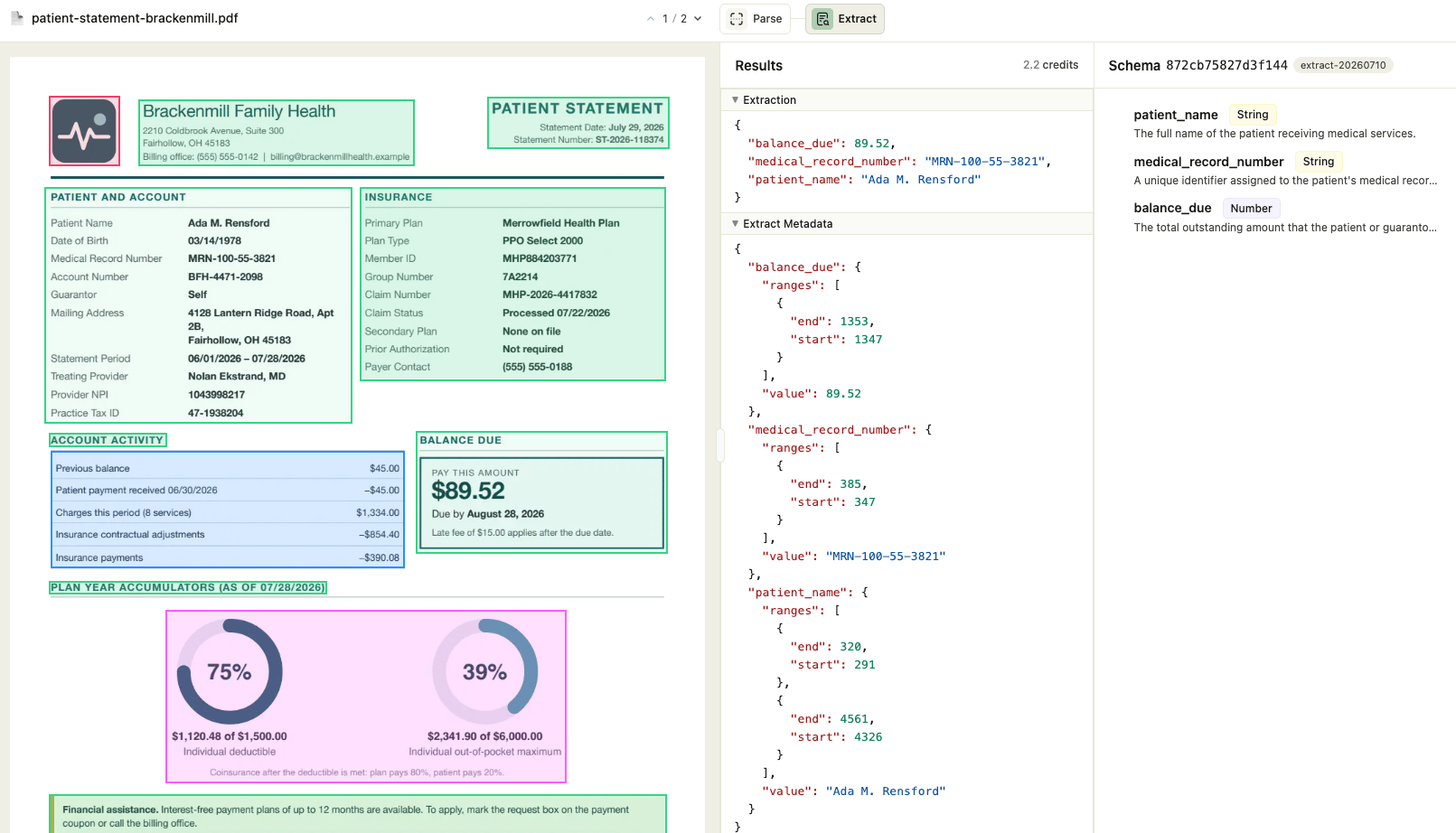
Open the extraction in your browser. The viewer shows the extracted values beside the original pages, and selecting a field highlights the exact spot on the document it came from:
```bash Command theme={null}
ade view 872cb75827d3f144
```
```text Output theme={null}
Viewer for job item 872cb75827d3f144 (extract) -> ~/.ade/jobs/872cb75827d3f144/view.html (built)
sidebar: building missing sibling viewers in the background
opened in browser: file:///Users/you/.ade/jobs/872cb75827d3f144/view.html
```
 ## Common Tasks
Each command below takes a job item ID, or any unambiguous prefix of one. AI agents: `ade help --json` returns this whole surface as one JSON object.
| To do this | Run | Learn more |
| ----------------------------------- | ------------------------------------------------ | -------------------------------------------------- |
| Parse a local file | `ade parse -d document.pdf` | [Parse Documents](./parse) |
| Parse at half the credits | `ade parse -d document.pdf --tier standard` | [Parse Documents](./parse) |
| Parse only some pages | `ade parse -d document.pdf --pages 1,3-5` | [Parse Documents](./parse) |
| Extract fields from a parse | `ade extract JOB_ID --schema schema.json` | [Extract Fields](./extract) |
| Get the result as JSON for a script | `ade extract JOB_ID --schema schema.json --json` | [Scripting and Automation](./scripting-automation) |
| See your past runs | `ade history list` | [CLI Concepts](./concepts) |
| Search a parsed document | `ade find JOB_ID "term"` | [Find, Crop, and View](./find-crop-view) |
| Open a document in the viewer | `ade view JOB_ID` | [Find, Crop, and View](./find-crop-view) |
| Save an element as an image | `ade crop JOB_ID --element-id ID` | [Find, Crop, and View](./find-crop-view) |
| Capture an ID for a script | `ade parse -d document.pdf --id-only` | [Scripting and Automation](./scripting-automation) |
| Check which account you are using | `ade auth status` | [Authentication](./authentication) |
## Common Tasks
Each command below takes a job item ID, or any unambiguous prefix of one. AI agents: `ade help --json` returns this whole surface as one JSON object.
| To do this | Run | Learn more |
| ----------------------------------- | ------------------------------------------------ | -------------------------------------------------- |
| Parse a local file | `ade parse -d document.pdf` | [Parse Documents](./parse) |
| Parse at half the credits | `ade parse -d document.pdf --tier standard` | [Parse Documents](./parse) |
| Parse only some pages | `ade parse -d document.pdf --pages 1,3-5` | [Parse Documents](./parse) |
| Extract fields from a parse | `ade extract JOB_ID --schema schema.json` | [Extract Fields](./extract) |
| Get the result as JSON for a script | `ade extract JOB_ID --schema schema.json --json` | [Scripting and Automation](./scripting-automation) |
| See your past runs | `ade history list` | [CLI Concepts](./concepts) |
| Search a parsed document | `ade find JOB_ID "term"` | [Find, Crop, and View](./find-crop-view) |
| Open a document in the viewer | `ade view JOB_ID` | [Find, Crop, and View](./find-crop-view) |
| Save an element as an image | `ade crop JOB_ID --element-id ID` | [Find, Crop, and View](./find-crop-view) |
| Capture an ID for a script | `ade parse -d document.pdf --id-only` | [Scripting and Automation](./scripting-automation) |
| Check which account you are using | `ade auth status` | [Authentication](./authentication) |