> ## Documentation Index
> Fetch the complete documentation index at: https://docs.landing.ai/llms.txt
> Use this file to discover all available pages before exploring further.
# Install and Update
> Install and update the ADE app from the Snowflake Marketplace.
export const adePythonLibrary = 'ade-python';
export const dpt2 = 'DPT-2';
export const dpt1 = 'DPT-1';
export const dpt = 'Document Pre-Trained Transformer';
export const companyName = 'LandingAI';
export const extract = 'ADE Extract';
export const parse = 'ADE Parse';
export const ade = 'Agentic Document Extraction';
## Installation Requirements
* Before installing any apps from the Snowflake Marketplace, a user with the ORGADMIN role must accept the Consumer Terms of Service for the Snowflake Marketplace. For more details, go to the [Snowflake Documentation](https://other-docs.snowflake.com/en/collaboration/consumer-becoming#accept-the-snowflake-provider-and-consumer-terms-of-service).
* To install an app, you must use the ACCOUNTADMIN role or another role with the IMPORT SHARE and CREATE privileges. For more details, go to the [Snowflake Documentation](https://other-docs.snowflake.com/en/native-apps/consumer-installing).
* {ade} is not available on Snowflake trial accounts.
## Request the App
Access to the {ade} app is available by request. To request the app, follow the instructions below:
1. Open the [LandingAI](https://app.snowflake.com/marketplace/providers/GZTYZ12K65BX/LandingAI) provider page in the Snowflake Marketplace.
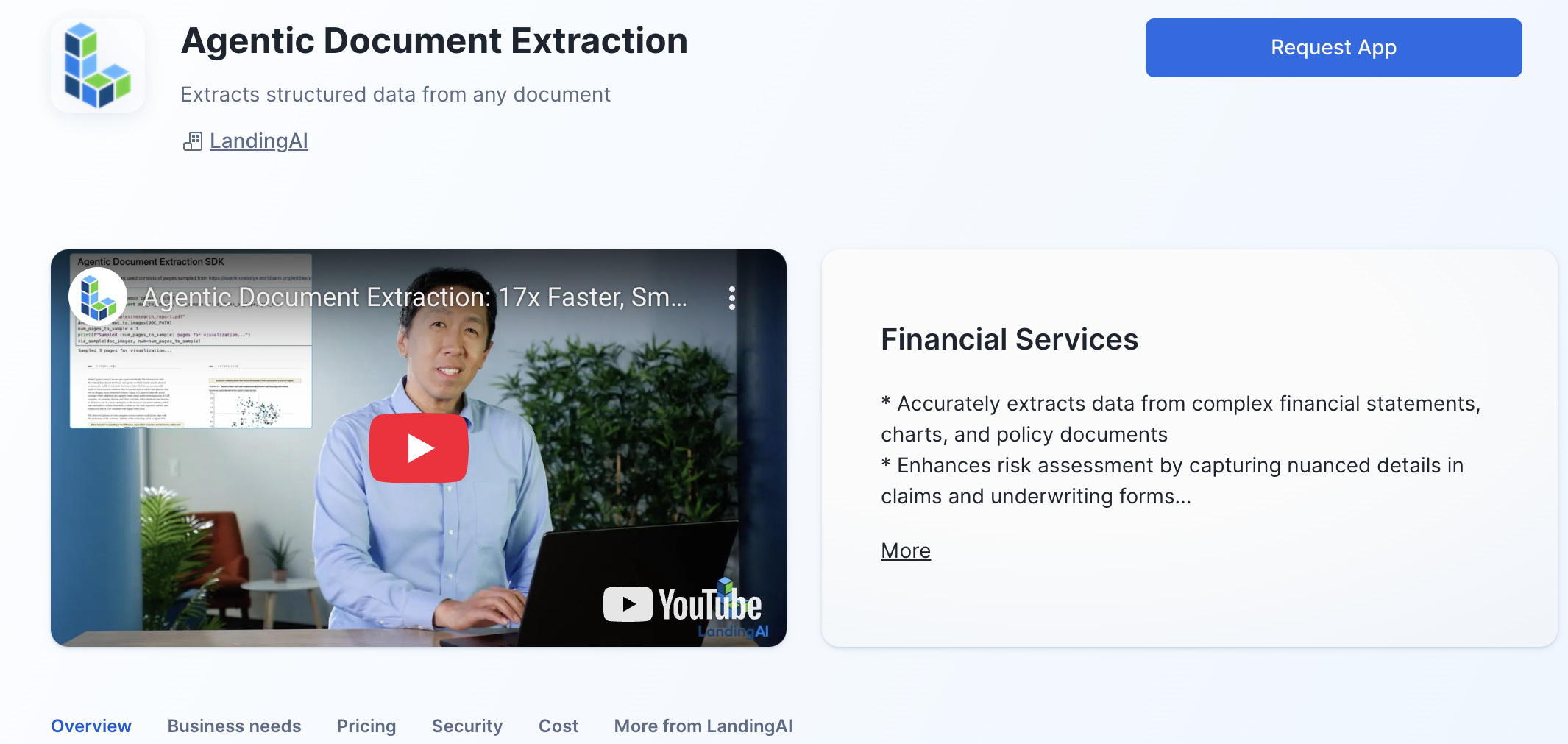
2. Locate and click the **Agentic Document Extraction** listing.
3. Click **Request App**.
 4. Fill out and submit the request form.
5. The LandingAI team will review the request and contact you with more information.
## Install the App
After you have [requested the app](#request-the-app) and have been granted access to it, follow the instructions below to install it in Snowflake:
1. Go to **Snowsight** > **Catalog** > **Apps** > **Recently Shared with You**.
2. Locate and click the **Agentic Document Extraction - App** listing.
3. Click **Get**.
4. Fill out and submit the request form.
5. The LandingAI team will review the request and contact you with more information.
## Install the App
After you have [requested the app](#request-the-app) and have been granted access to it, follow the instructions below to install it in Snowflake:
1. Go to **Snowsight** > **Catalog** > **Apps** > **Recently Shared with You**.
2. Locate and click the **Agentic Document Extraction - App** listing.
3. Click **Get**.
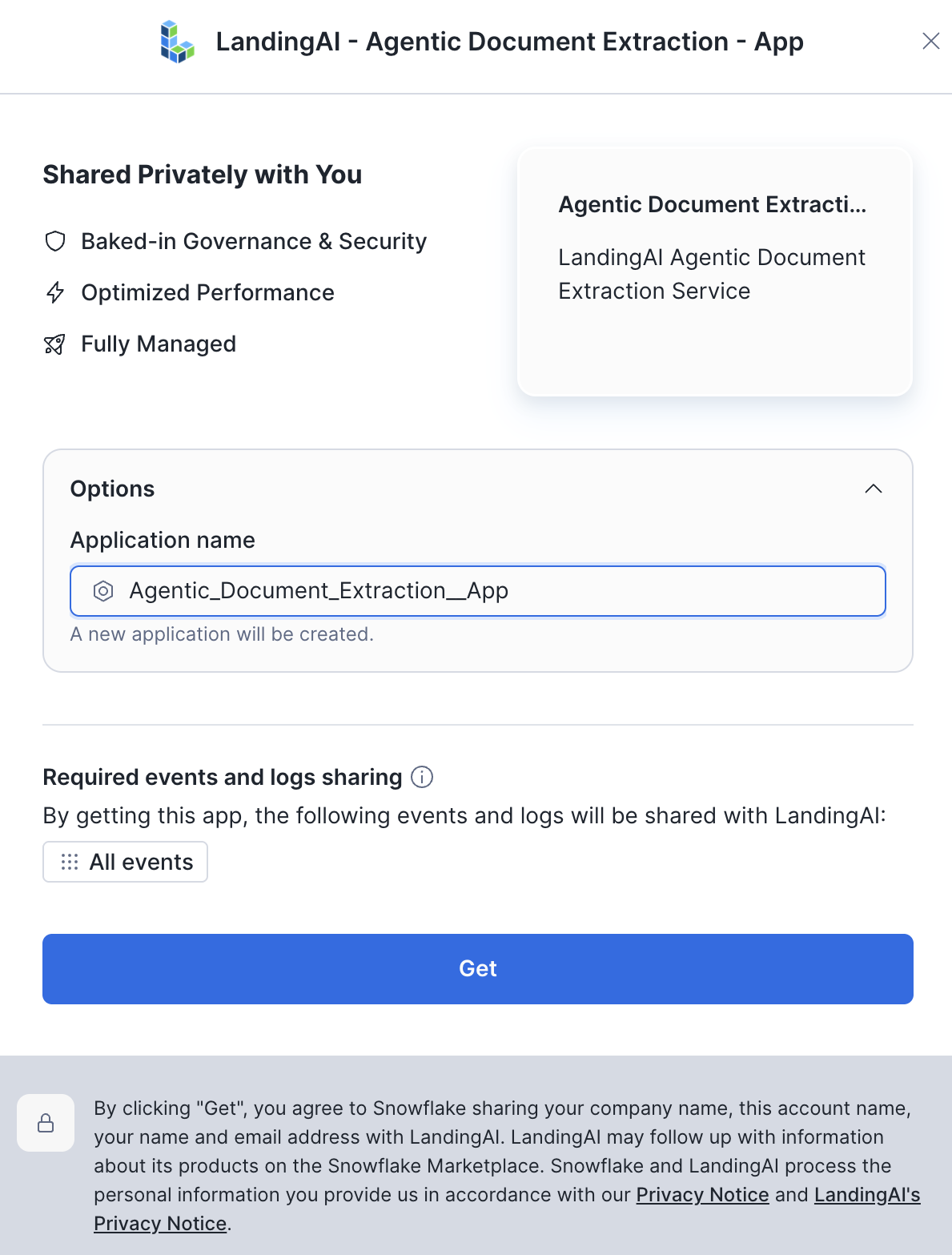
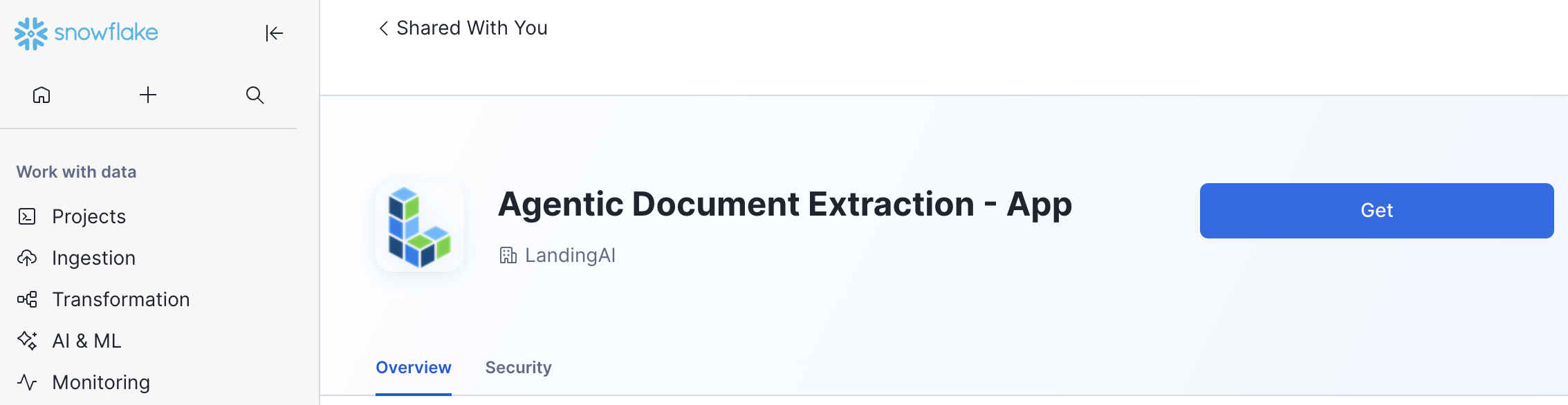 4. If you want to change the name of the application, click **Options** and enter a name in **Application Name**.
5. Click **Get**.
4. If you want to change the name of the application, click **Options** and enter a name in **Application Name**.
5. Click **Get**.
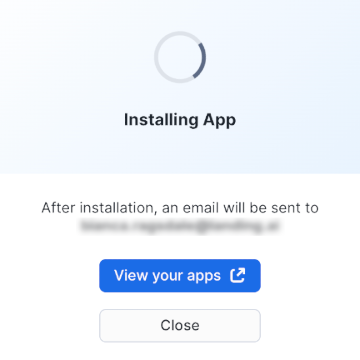
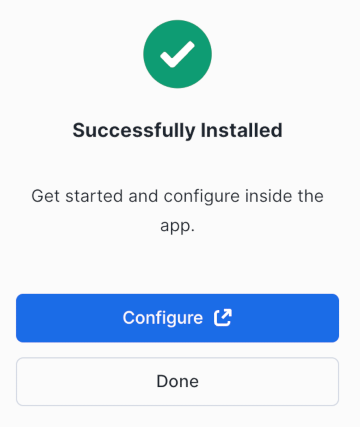
 6. A pop-up indicates that the installation process has begun.
 7. After this process is complete, click **Configure** on the pop-up. (You will also get an email notifying you that you can access the app.)
If you've navigated away from the page, go to **Snowsight** > **Catalog** > **Apps**. Click the app listing. Although the app appears in Installed Apps, configuration is not complete.
7. After this process is complete, click **Configure** on the pop-up. (You will also get an email notifying you that you can access the app.)
If you've navigated away from the page, go to **Snowsight** > **Catalog** > **Apps**. Click the app listing. Although the app appears in Installed Apps, configuration is not complete.
 8. The app opens.
9. In the pop-up that displays, grant egress access by clicking **Connect**.
**The app requires this access to function.** Egress access allows the app to connect to the {ade} service over the internet.
8. The app opens.
9. In the pop-up that displays, grant egress access by clicking **Connect**.
**The app requires this access to function.** Egress access allows the app to connect to the {ade} service over the internet.
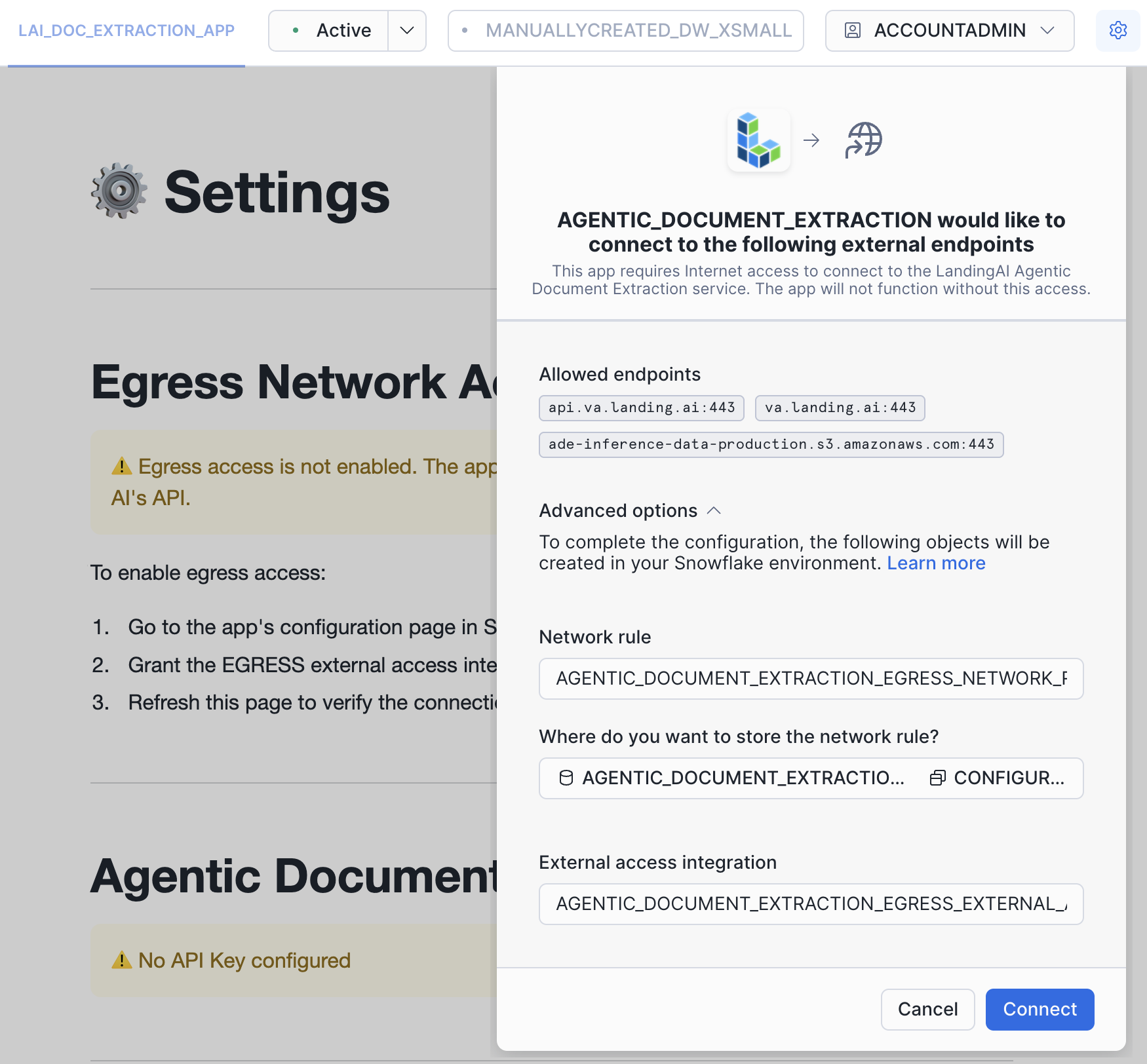 The pop-up displays the following message:
> AGENTIC\_DOCUMENT\_EXTRACTION\_\_APP would like to connect to the following external endpoints
>
> This app requires Internet access to connect to the LandingAI Agentic Document Extraction service. The app will not function without this access.
After clicking **Connect**, the following objects are created in your Snowflake environment. You can change the default values if needed. (`APP_NAME` is replaced with the name of your [app](./ade-sf-app-name).)
* **Network rule**: APP\_NAME\_EGRESS\_NETWORK\_RULE
* **Location**: APP\_NAME\_APP\_DATA.CONFIGURATION
* **External access integration**: APP\_NAME\_EGRESS\_EXTERNAL\_ACCESS
For more information about external network access, see the [Snowflake Documentation](https://docs.snowflake.com/en/developer-guide/external-network-access/external-network-access-overview).
10. After enabling egress access, [enter your API key](#enter-api-key).
## Enter API Key
To parse documents or run extraction, you must enter your API key in the {ade} app in Snowsight.
Only one API key can be entered in the app at a time. In case multiple users access the app, the API key is masked in the interface.
**In {ade}:**
1. If you haven't already, [create an {ade} account](https://ade.landing.ai/).
2. [Get your API key](https://ade.landing.ai/my/settings/api-key).
**In Snowsight:**
1. Go to **Catalog** > **Apps** > **Agentic Document Extraction - App**.
2. Click **Settings** (if the app does not automatically open to this tab).
3. Enter your API key.
4. Click **Add API Key**.
The pop-up displays the following message:
> AGENTIC\_DOCUMENT\_EXTRACTION\_\_APP would like to connect to the following external endpoints
>
> This app requires Internet access to connect to the LandingAI Agentic Document Extraction service. The app will not function without this access.
After clicking **Connect**, the following objects are created in your Snowflake environment. You can change the default values if needed. (`APP_NAME` is replaced with the name of your [app](./ade-sf-app-name).)
* **Network rule**: APP\_NAME\_EGRESS\_NETWORK\_RULE
* **Location**: APP\_NAME\_APP\_DATA.CONFIGURATION
* **External access integration**: APP\_NAME\_EGRESS\_EXTERNAL\_ACCESS
For more information about external network access, see the [Snowflake Documentation](https://docs.snowflake.com/en/developer-guide/external-network-access/external-network-access-overview).
10. After enabling egress access, [enter your API key](#enter-api-key).
## Enter API Key
To parse documents or run extraction, you must enter your API key in the {ade} app in Snowsight.
Only one API key can be entered in the app at a time. In case multiple users access the app, the API key is masked in the interface.
**In {ade}:**
1. If you haven't already, [create an {ade} account](https://ade.landing.ai/).
2. [Get your API key](https://ade.landing.ai/my/settings/api-key).
**In Snowsight:**
1. Go to **Catalog** > **Apps** > **Agentic Document Extraction - App**.
2. Click **Settings** (if the app does not automatically open to this tab).
3. Enter your API key.
4. Click **Add API Key**.
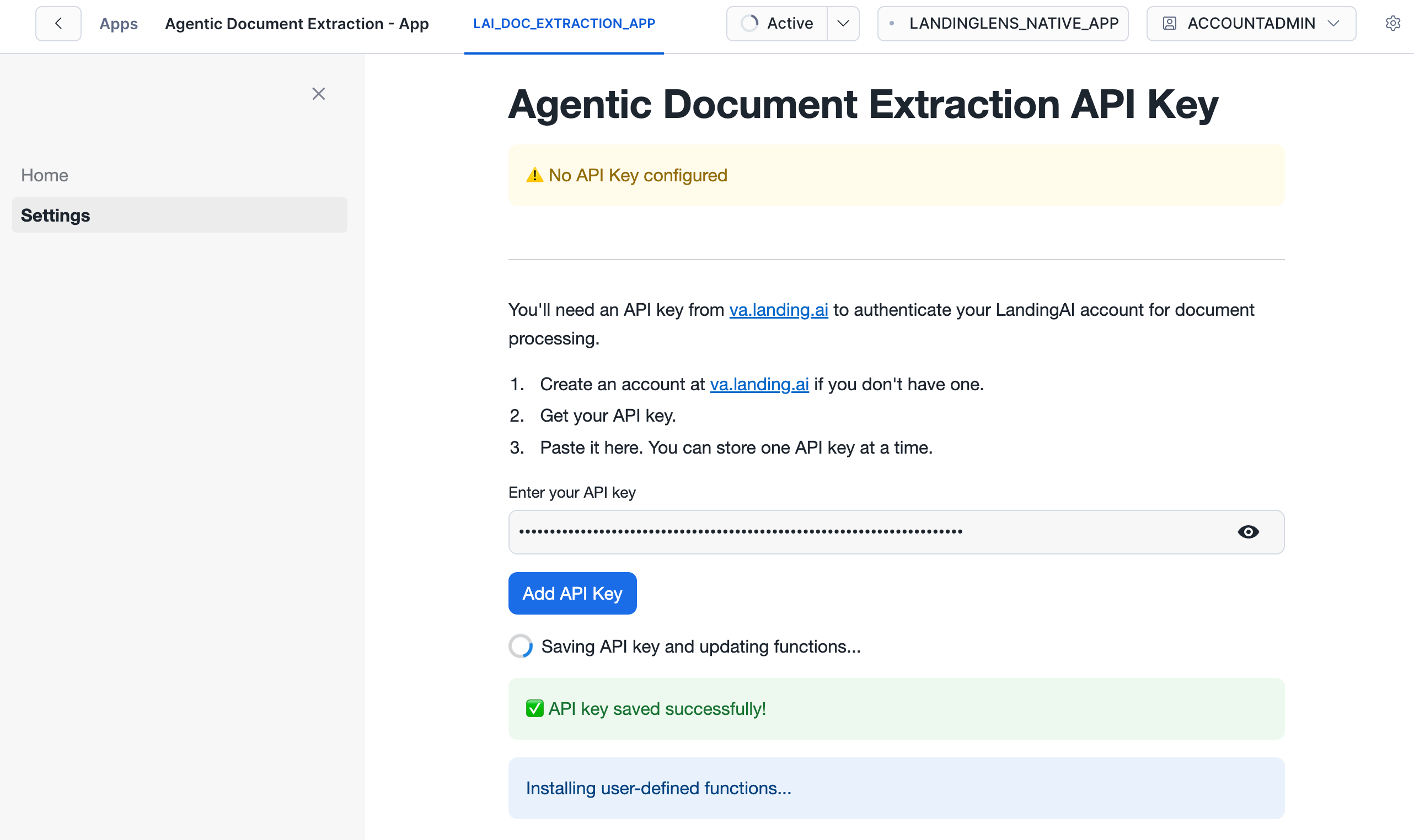 5. The app saves the API key, generates procedures for using {ade}, and unlocks usage instructions on the Home page. This might take a few minutes.
## Next Steps
After you install the app and enter your API key in the app, you are ready to [parse documents](./ade-sf-parse-cloud) and [extract data](./ade-sf-extract-cloud).
## App Updates
The app is automatically updated when a new version is released. Users cannot manually update the app.
## Troubleshooting Tips
### Error: Connect to allow the app to access the LandingAI Agentic Document Extraction service
During the installation process, you might get this error:
> Connect to allow the app to access the LandingAI Agentic Document Extraction service
>
> This app requires Internet access to connect to the LandingAI Agentic Document Extraction service. The app will not function without this access.
>
> There was an error initializing the configuration flow. Close the dialog and try again later.
If you get this error message, try selecting a different warehouse from the drop-down menu in the top right corner.
5. The app saves the API key, generates procedures for using {ade}, and unlocks usage instructions on the Home page. This might take a few minutes.
## Next Steps
After you install the app and enter your API key in the app, you are ready to [parse documents](./ade-sf-parse-cloud) and [extract data](./ade-sf-extract-cloud).
## App Updates
The app is automatically updated when a new version is released. Users cannot manually update the app.
## Troubleshooting Tips
### Error: Connect to allow the app to access the LandingAI Agentic Document Extraction service
During the installation process, you might get this error:
> Connect to allow the app to access the LandingAI Agentic Document Extraction service
>
> This app requires Internet access to connect to the LandingAI Agentic Document Extraction service. The app will not function without this access.
>
> There was an error initializing the configuration flow. Close the dialog and try again later.
If you get this error message, try selecting a different warehouse from the drop-down menu in the top right corner.