> ## Documentation Index
> Fetch the complete documentation index at: https://docs.landing.ai/llms.txt
> Use this file to discover all available pages before exploring further.

# Pricing & Billing

export const section = 'ADE Section';

export const splitJSON = 'split rules';

export const split = 'ADE Split';

export const adePythonLibrary = 'ade-python';

export const dpt2mini = 'DPT-2 mini';

export const dpt2 = 'DPT-2';

export const dpt1 = 'DPT-1';

export const dpt = 'Document Pre-Trained Transformer';

export const companyName = 'LandingAI';

export const buildExtract = 'ADE Build Extract Schema';

export const extract = 'ADE Extract';

export const parse = 'ADE Parse';

export const ade = 'Agentic Document Extraction';

{companyName} offers various plans for {ade}. Pricing varies by region:

* [US](#us-pricing)
* [EU](#eu-pricing)

<Info>
  [Credit costs](#credit-costs) are identical for both the US and EU regions.
</Info>

## US Pricing

See the full details for the pricing plans and upgrade in the [app](https://va.landing.ai/plan).

All users start on our pay-as-you-go Explore plan with free credits. After that, you can stay on the Explore plan and buy credits as needed, or upgrade to a Team or Enterprise account.

<table>
  <thead>
    <tr>
      <th />

      <th>Explore</th>
      <th>Team</th>
      <th>Enterprise</th>
    </tr>
  </thead>

  <tbody>
    <tr>
      <td><strong>Cost</strong></td>
      <td>Pay-as-you-go<br />Start with 1000 free credits</td>
      <td>Credit packs start at \$250/mo</td>
      <td>Contact us</td>
    </tr>

    <tr>
      <td><strong>Credit value</strong></td>
      <td>\$1 buys 100 credits</td>
      <td>\$1 buys 110 credits</td>
      <td>Contact us</td>
    </tr>
  </tbody>
</table>

## EU Pricing

{ade} is available in the EU at [https://va.eu-west-1.landing.ai/](https://va.eu-west-1.landing.ai/).

See the full details for the pricing plans and upgrade in the [app](https://va.eu-west-1.landing.ai/plan).

We price in US dollars across all regions. Your payment will be processed in USD using current exchange rates.

All users start on our pay-as-you-go Explore plan with free credits. After that, you can stay on the Explore plan and buy credits as needed, or upgrade to a Team or Enterprise account.

<table>
  <thead>
    <tr>
      <th />

      <th>Explore</th>
      <th>Team</th>
      <th>Enterprise</th>
    </tr>
  </thead>

  <tbody>
    <tr>
      <td><strong>Cost</strong></td>
      <td>Pay-as-you-go<br />Start with 1000 free credits</td>
      <td>Credit packs start at \$325/mo</td>
      <td>Contact us</td>
    </tr>

    <tr>
      <td><strong>Credit value</strong></td>
      <td>\$1 buys 76 credits</td>
      <td>\$1 buys 84 credits</td>
      <td>Contact us</td>
    </tr>
  </tbody>
</table>

## Plan Features

<table className="pricing-table">
  <thead>
    <tr>
      <th>Feature</th>
      <th>Explore</th>
      <th>Team</th>
      <th>Enterprise</th>
    </tr>
  </thead>

  <tbody>
    <tr>
      <td><strong>Core Capabilities</strong></td>

      <td />

      <td />

      <td />
    </tr>

    <tr>
      <td>Parsing<br />[view supported file formats](./ade-file-types)</td>
      <td><span class="check-icon">✓</span></td>
      <td><span class="check-icon">✓</span></td>
      <td><span class="check-icon">✓</span></td>
    </tr>

    <tr>
      <td>Intelligent Chunking</td>
      <td><span class="check-icon">✓</span></td>
      <td><span class="check-icon">✓</span></td>
      <td><span class="check-icon">✓</span></td>
    </tr>

    <tr>
      <td>Field Extraction</td>
      <td><span class="check-icon">✓</span></td>
      <td><span class="check-icon">✓</span></td>
      <td><span class="check-icon">✓</span></td>
    </tr>

    <tr>
      <td>List Extraction</td>
      <td><span class="check-icon">✓</span></td>
      <td><span class="check-icon">✓</span></td>
      <td><span class="check-icon">✓</span></td>
    </tr>

    <tr>
      <td>Table Extraction</td>
      <td><span class="check-icon">✓</span></td>
      <td><span class="check-icon">✓</span></td>
      <td><span class="check-icon">✓</span></td>
    </tr>

    <tr>
      <td>Figure Summaries</td>
      <td><span class="check-icon">✓</span></td>
      <td><span class="check-icon">✓</span></td>
      <td><span class="check-icon">✓</span></td>
    </tr>

    <tr>
      <td>Visual Grounding</td>
      <td><span class="check-icon">✓</span></td>
      <td><span class="check-icon">✓</span></td>
      <td><span class="check-icon">✓</span></td>
    </tr>

    <tr>
      <td>Split Classification</td>
      <td><span class="check-icon">✓</span></td>
      <td><span class="check-icon">✓</span></td>
      <td><span class="check-icon">✓</span></td>
    </tr>

    <tr>
      <td>Multilingual documents</td>
      <td><span class="check-icon">✓</span></td>
      <td><span class="check-icon">✓</span></td>
      <td><span class="check-icon">✓</span></td>
    </tr>

    <tr>
      <td>Confidence Scoring</td>
      <td><span class="check-icon">✓</span></td>
      <td><span class="check-icon">✓</span></td>
      <td><span class="check-icon">✓</span></td>
    </tr>

    <tr>
      <td>Custom Processing Pipeline</td>

      <td />

      <td />

      <td><span class="check-icon">✓</span></td>
    </tr>

    <tr>
      <td><strong>Organization Management & Support</strong></td>

      <td />

      <td />

      <td />
    </tr>

    <tr>
      <td>Users</td>
      <td>1</td>
      <td>Unlimited users</td>
      <td>Unlimited users</td>
    </tr>

    <tr>
      <td>Support Level</td>
      <td>Community</td>
      <td>Enhanced</td>
      <td>Designated</td>
    </tr>

    <tr>
      <td><strong>Security & Deployment</strong></td>

      <td />

      <td />

      <td />
    </tr>

    <tr>
      <td>Rate Limits<br />[see more details](./ade-rate-limits)</td>
      <td>Standard</td>
      <td>Higher</td>
      <td>Priority</td>
    </tr>

    <tr>
      <td>Zero Data Retention (ZDR)</td>

      <td />

      <td><span class="check-icon">✓</span></td>
      <td><span class="check-icon">✓</span></td>
    </tr>

    <tr>
      <td>HIPAA (BAA) (inc. ZDR)</td>

      <td />

      <td><span class="check-icon">✓</span></td>
      <td><span class="check-icon">✓</span></td>
    </tr>

    <tr>
      <td>VPC and On-Prem Deployments</td>

      <td />

      <td />

      <td><span class="check-icon">✓</span></td>
    </tr>

    <tr>
      <td>SLA & Uptime Guarantees</td>

      <td />

      <td />

      <td><span class="check-icon">✓</span></td>
    </tr>

    <tr>
      <td>Single Sign-On (SSO)<br />[see more details](./ade-sso)</td>

      <td />

      <td />

      <td><span class="check-icon">✓</span></td>
    </tr>
  </tbody>
</table>

## Credit Costs

The credit consumption is determined by the specific API endpoint called.

* [Parse APIs](#credit-costs-for-the-parse-apis)
* [Extract API](#credit-costs-for-the-extract-api)
* [Build Extract Schema API](#credit-costs-for-the-build-extract-schema-api)
* [Classify API](#credit-costs-for-the-classify-api)
* [Section API](#credit-costs-for-the-section-api)
* [Split API](#credit-costs-for-the-split-api)

### Credit Costs for the Parse APIs

This section explains credit use for these APIs:

* [{parse} API](https://docs.landing.ai/api-reference/tools/ade-parse)
* [ADE Parse Jobs](https://docs.landing.ai/api-reference/tools/ade-parse-jobs)

#### Documents

This pricing applies when using the {dpt2} parsing model. For {dpt2mini} pricing, see [DPT-2 mini](#dpt-2-mini).

The number of credits used to parse a document is based on the number of pages and the features used in parsing, as shown in the following table.

| Feature         | Credit Cost    | Notes                                                                        |
| :-------------- | :------------- | :--------------------------------------------------------------------------- |
| Parsing         | 3 credits/page | Each page processed includes parsing.                                        |
| ZDR (HIPAA/BAA) | +1 credit/page | Additional charge when enabled.<br />Available on Team and Enterprise plans. |

#### Spreadsheets

This pricing applies when using the {dpt2} parsing model. For {dpt2mini} pricing, see [DPT-2 mini](#dpt-2-mini).

The number of credits used to parse a spreadsheet is based on the number of sheets and embedded images.

For supported spreadsheet formats, see [Supported File Types](./ade-file-types).

| Feature         | Credit Cost                          | Notes                                                                        |
| :-------------- | :----------------------------------- | :--------------------------------------------------------------------------- |
| Parsing         | 1 credit/sheet                       | Each sheet processed includes parsing.                                       |
| Embedded images | 3 credits/image                      | Cost per embedded image, chart, or logo.                                     |
| ZDR (HIPAA/BAA) | +1 credit/sheet<br />+1 credit/image | Additional charge when enabled.<br />Available on Team and Enterprise plans. |

**Example:** A spreadsheet with 1 sheet and 2 embedded images:

* Base cost: 1 credit (sheet) + 6 credits (2 images) = **7 credits**
* With ZDR enabled: 7 credits (base) + 1 credit (sheet) + 2 credits (2 images) = **10 credits**

#### DPT-2 mini

[{dpt2mini}](./ade-parse-models#dpt-2-mini) is a lightweight model that consumes fewer credits than other parsing models.

The number of credits used to parse a document is based on the number of pages and the features used in parsing, and is rounded up to the nearest tenth decimal place.

| Feature         | Credit Cost      | Notes                                                                        |
| :-------------- | :--------------- | :--------------------------------------------------------------------------- |
| Parsing         | 1.5 credits/page | Each page processed includes parsing.                                        |
| ZDR (HIPAA/BAA) | +1 credit/page   | Additional charge when enabled.<br />Available on Team and Enterprise plans. |

### Credit Costs for the Extract API

This section explains credit use for this API:

* [{extract} API](https://docs.landing.ai/api-reference/tools/ade-extract)

The number of credits used to extract data is based on both the number of input characters and output characters, and is rounded up to the nearest tenth decimal place.

| Factor                  | Credit Cost | Notes                                                                                                                                                                                                                       |
| :---------------------- | :---------- | :-------------------------------------------------------------------------------------------------------------------------------------------------------------------------------------------------------------------------- |
| 5,000 input characters  | 1 credit    | Input characters are the number of characters in the Markdown file that is passed to the API.                                                                                                                               |
| 1,000 output characters | 1 credit    | Output characters are the number of characters in the `extraction` object returned by the API, excluding whitespace used for indentation. (Other spaces, like the spaces after colons in key-value pairs, are not removed.) |

**Formula**

Here is the formula used to calculate the credit cost:

```text theme={null}
credits = (input characters ÷ 5,000) + (output characters ÷ 1,000)
Result is rounded up to the nearest tenth decimal place.
```

#### Sample Cost for the Extract API

**Input Characters**

Let's say you run the {extract} API on a Markdown file with the following content. The file has 2,270 characters. Therefore, **the number of input characters is 2,270.**

```
<a id='2800ae73-bd32-4c54-910d-755f25541b15'></a>\n\nAROMA CAFE\n1211 Green Street\nNew York, NY 10005\n\n<a id='b7c067c1-4c96-4f07-8a2e-f3557aeb9b95'></a>\n\n12/27/2019\n\n<a id='9d2262d5-9319-41f1-9c69-e7ba0b726f9a'></a>\n\n08:26 PM\n\n<a id='8dfee4e4-c1a1-4fc8-9525-8c0352697e90'></a>\n\nTAB 8          HOST MAGGIE\n\n<a id='25f864af-7281-4c83-95bd-2e499dd8ee0d'></a>\n\nAMEX ##########19883\n\n<a id='4486463b-f5e3-487b-b9df-4959587c5091'></a>\n\n<table>\n  <tr>\n    <th>QTY</th>\n    <th>DESC</th>\n    <th>AMT</th>\n  </tr>\n  <tr>\n    <td>1</td>\n    <td>Americano</td>\n    <td>$3.19</td>\n  </tr>\n  <tr>\n    <td>1</td>\n    <td>Almond Scone</td>\n    <td>$1.99</td>\n  </tr>\n  <tr>\n    <td>1</td>\n    <td>16oz Bottle Water</td>\n    <td>$2.99</td>\n  </tr>\n</table>\n\n<a id='91b1d921-163e-406b-bf7f-a1731f706e1c'></a>\n\nAMT: $8.70\n\nSUBTOTAL: $8.17\nTAX: $0.53\n\nBALANCE: $8.70\n\n<a id='7bcc9a3e-c688-4ff2-a5b0-bfea57d25f3c'></a>\n\nSummary : This image displays a barcode consisting of a series of vertical black and white lines, used for encoding information in a machine-readable format.\n\nbarcode:\n  Barcode Details :\n    • The barcode is composed of alternating black and white vertical bars of varying thickness.\n    • No human-readable numeric or alphanumeric string is visible below or above the barcode.\n    • Barcode type is not explicitly indicated; the pattern resembles a standard linear barcode (e.g., Code 128 or EAN-13), but cannot be definitively identified without further context.\n    • The barcode contains approximately 60–70 modules (individual bars and spaces).\n    • Quiet zones (blank margins) are present on both the left and right sides of the barcode.\n    • The barcode is horizontally oriented and centered on a white background.\n    • No additional text, logo, or annotation is present.\n\nAnalysis :\n  • The barcode is designed for machine scanning and does not convey any human-readable information in this image.\n  • The absence of a numeric string or label means the encoded data cannot be determined visually.\n  • The presence of quiet zones and consistent bar height suggests it is formatted for standard retail or inventory use.\n\n<a id='d06c76e1-fb44-4efb-89b7-f7eedd976062'></a>\n\nSAMPLE RECEIPT
```

**Output Characters**

Let's say you extract multiple fields from the Markdown file, and the following is the content in the `extraction` object returned by the API. The response has 475 characters. Therefore, **the number of output characters is 475.**

```
{'merchant': {'name': 'AROMA CAFE', 'address': '1211 Green Street', 'city_state_zip': 'New York, NY 10005'}, 'transaction': {'date': '2019-12-27', 'time': '20:26', 'payment_method': 'AMEX ##########19883', 'tab_host': 'TAB 8 HOST MAGGIE'}, 'items': [{'qty': '1', 'desc': 'Americano', 'amt': '3.19'}, {'qty': '1', 'desc': 'Almond Scone', 'amt': '1.99'}, {'qty': '1', 'desc': '16oz Bottle Water', 'amt': '2.99'}], 'totals': {'subtotal': '8.17', 'tax': '0.53', 'total': '8.70'}}
```

**Calculate the Total**

Now that you have your input and output character counts, you can calculate the credit cost:

| Step                    | Calculation                             | Result     |
| ----------------------- | --------------------------------------- | ---------- |
| Input credits           | 2,270 ÷ 5,000                           | 0.454      |
| Output credits          | 475 ÷ 1,000                             | 0.475      |
| Total (before rounding) | 0.454 + 0.475                           | 0.929      |
| Final cost              | Round up to nearest tenth decimal place | 1.0 credit |

### Credit Costs for the Build Extract Schema API

This section explains credit use for this API:

* [{buildExtract} API](https://docs.landing.ai/api-reference/tools/ade-build-schema)

The number of credits used to build an extraction schema is based on both the number of input characters and output characters, and is rounded up to the nearest tenth decimal place.

| Factor                  | Credit Cost | Notes                                                                                                                                |
| :---------------------- | :---------- | :----------------------------------------------------------------------------------------------------------------------------------- |
| 5,000 input characters  | 1 credit    | Input characters are the combined total number of characters in the `markdowns`, `markdown_urls`, `prompt`, and `schema` parameters. |
| 1,000 output characters | 1 credit    | Output characters are the number of characters in the schema returned by the API.                                                    |

**Formula**

Here is the formula used to calculate the credit cost:

```text theme={null}
credits = (input characters ÷ 5,000) + (output characters ÷ 1,000)
Result is rounded up to the nearest tenth decimal place.
```

#### Sample Cost for the Build Extract Schema API

Let's say you have an existing schema built from two bank statements. You want to add and remove some fields in the schema, so you call the {buildExtract} API to refine the schema.

**Input Characters**

The API includes the following parameters.

| Parameter   | Content                                                | Characters |
| :---------- | :----------------------------------------------------- | ---------: |
| `markdowns` | The parsed output of the first bank statement          |      9,116 |
| `markdowns` | The parsed output of the second bank statement         |      7,314 |
| `schema`    | The existing extraction schema that you want to refine |      9,089 |
| `prompt`    | Instructions to add and remove specific fields         |        214 |
| **Total**   |                                                        | **25,733** |

**Output Characters**

Running the API call generates the following updated schema.

| Content        | Characters |
| :------------- | ---------: |
| Updated schema |      8,585 |

**Calculate the Total**

Now that you have your input and output character counts, you can calculate the credit cost.

| Step                    | Calculation                             | Result       |
| :---------------------- | :-------------------------------------- | :----------- |
| Input credits           | 25,733 ÷ 5,000                          | 5.1466       |
| Output credits          | 8,585 ÷ 1,000                           | 8.585        |
| Total (before rounding) | 5.1466 + 8.585                          | 13.7316      |
| Final cost              | Round up to nearest tenth decimal place | 13.8 credits |

### Credit Costs for the Classify API

This section explains credit use for this API:

* [ADE Classify API](https://docs.landing.ai/api-reference/tools/ade-classify)

The number of credits used to classify a document is based on the number of pages, and is rounded up to the nearest tenth decimal place.

| Factor   | Credit Cost      | Notes                                                         |
| :------- | :--------------- | :------------------------------------------------------------ |
| Per page | 0.5 credits/page | Each page processed by the Classify API consumes 0.5 credits. |

**Formula**

Here is the formula used to calculate the credit cost:

```text theme={null}
credits = number of pages × 0.5
Result is rounded up to the nearest tenth decimal place.
```

**Example:** A 10-page document costs 10 × 0.5 = **5.0 credits**.

### Credit Costs for the Section API

This section explains credit use for this API:

* [{section} API](https://docs.landing.ai/api-reference/tools/ade-section)

The number of credits used to section a document is based on both the number of input characters and output characters, and is rounded up to the nearest tenth decimal place.

| Factor                  | Credit Cost | Notes                                                                                                |
| :---------------------- | :---------- | :--------------------------------------------------------------------------------------------------- |
| 5,000 input characters  | 1 credit    | Input characters are the number of characters in the Markdown file passed to the API.                |
| 1,000 output characters | 1 credit    | Output characters are the number of characters in the `table_of_contents` field returned by the API. |

**Formula**

Here is the formula used to calculate the credit cost:

```text theme={null}
credits = (input characters ÷ 5,000) + (output characters ÷ 1,000)
Result is rounded up to the nearest tenth decimal place.
```

### Credit Costs for the Split API

This section explains credit use for this API:

* [{split} API](https://docs.landing.ai/api-reference/tools/ade-split)

The number of credits used to split documents is based on the number of input characters, and is rounded up to the nearest tenth decimal place.

| Factor                 | Credit Cost | Notes                                                                                         |
| :--------------------- | :---------- | :-------------------------------------------------------------------------------------------- |
| 5,000 input characters | 1 credit    | Input characters are the number of characters in the Markdown file that is passed to the API. |

**Formula**

Here is the formula used to calculate the credit cost:

```text theme={null}
credits = (input characters ÷ 5,000) 
Result is rounded up to the nearest tenth decimal place.
```

## Overages

**Explore Plan**

If you're on the **Explore** plan, you can only use the credits you have purchased. If you run out of credits, you can purchase additional credits to continue using {ade}.

**Team Plan (Subscription)**

If you're on a **Team** plan (a subscription plan), you have a pool of extra credits to draw from if you exceed your allocation for a billing cycle. This pool can include:

* **Transferred credits**: Credits from a previous plan that carried over when you upgraded (for example, unused Explore credits).
* **Prepaid credits**: "Pay-As-You-Go" credits purchased in advance. Prepaid credits cost \$0.01 per credit (US) or \$0.013 per credit (EU) and expire 1 year from the purchase date.

Credits that expire soonest are consumed first. For example, if you have 500 transferred Explore credits expiring in 2 months and 1,000 prepaid credits expiring in 10 months, the transferred credits are consumed first.

## Auto Recharge

Use Auto Recharge to automatically purchase credits when your balance falls below a set threshold. Auto Recharge is available on the **Explore** and **Team** plans.

Auto Recharge is enabled by default on **Team** plans. It is disabled by default on the **Explore** plan.

### Auto Recharge Best Practices

Set your threshold high enough to cover your largest expected API call. If your threshold is too low, Auto Recharge may not trigger before your balance is exhausted, and the API call will return a `402` status (Payment Required).

For example, if a typical job consumes 1,500 credits, set your threshold above 1,500 credits.

### How to Manage Auto Recharge

1. Log in to [https://va.landing.ai](https://va.landing.ai).
2. Go to the **Plan & Billing** page (to navigate there manually, click your profile icon at the bottom left corner of the page and click **Plan & Billing**).
3. If you're not currently in the correct organization, select your organization from the drop-down menu.
4. Click the **Plan** tab.
5. Click **Add Credits**. (If you're on the **Explore** plan, click **Buy Credits**.)
6. If Auto Recharge is not already enabled, turn on **Enable Auto Recharge**.
7. In the **When credit balance goes below** field, enter the threshold that will trigger Auto Recharge.

   For example, entering 5,000 means credits are purchased automatically when your balance reaches 5,000 or fewer.

   By default, this is 10% of the credits allocated for your billing cycle.
8. In the **Add to** field, enter the number of credits you want to purchase.

   By default, this is 100% of the credits allocated for your billing cycle.
9. Click **Next** and follow the on-screen prompts.

## Upgrade Team Plans

You can upgrade your Team plan from one tier to another. For example, you can upgrade from the tier that includes 55K credits per month to the tier that includes 110K credits per month.

If you upgrade your Team plan, the changes take effect immediately.

### What to Expect When You Upgrade

**Your current billing cycle ends:**

* Your current billing cycle ends on the upgrade date.

**Your new billing cycle starts:**

* A new billing cycle starts on the upgrade date.
* You are charged for the new plan.
* Your unused credits from the previous plan are transferred to the allocation for the new billing cycle and expire at the end of that cycle. These transferred credits can be transferred again if you upgrade before they expire.

### How to Upgrade Your Plan

1. Log in to [https://va.landing.ai/home](https://va.landing.ai/home).
2. Go to the **Plan & Billing** page (to navigate there manually, click your profile icon at the bottom left corner of the page and click **Plan & Billing**).
3. If you're not currently in the correct organization, select your organization from the drop-down menu.
4. Click the **Plan** tab.
5. Click **Manage** > **Change Plan**.
6. Select the plan you want and follow the on-screen prompts.

## Downgrade Team Plans

You can downgrade your Team plan from one tier to another. If you downgrade your Team, the changes take effect at the end of the current billing cycle.

If you have unused credits when you downgrade, those credits do not transfer to your new plan. You have until the end of your current billing cycle to use the remaining credits.

### How to Downgrade Your Plan

1. Log in to [https://va.landing.ai/home](https://va.landing.ai/home).
2. Go to the **Plan & Billing** page (to navigate there manually, click your profile icon at the bottom left corner of the page and click **Plan & Billing**).
3. If you're not currently in the correct organization, select your organization from the drop-down menu.
4. Click the **Plan** tab.
5. Click **Manage** > **Change Plan**.
6. Select the plan you want and follow the on-screen prompts.

## Credit Expiration

<table>
  <thead>
    <tr>
      <th>Credit Type</th>
      <th>Expiration</th>
    </tr>
  </thead>

  <tbody>
    <tr>
      <td>Free credits included in the <strong>Explore</strong> plan</td>
      <td>Expire 90 days after you create your account</td>
    </tr>

    <tr>
      <td>"Pay-As-You-Go" Credits Purchased (includes credits purchased via Auto Recharge)</td>
      <td>Expire 1 year from the purchase date</td>
    </tr>

    <tr>
      <td>Credits allocated as part of a subscription or Enterprise plan</td>
      <td>Credits are allocated at the start of each billing cycle (for subscription plans) or subscription term (for Enterprise plans). Unused credits expire at the end of that period.</td>
    </tr>
  </tbody>
</table>

## FAQs

### Plans, Credits, and Billing

<Accordion title="How do credits work?">
  Credits are usage units that get consumed each time you process a document. Every document processing task—like parsing or field extraction—uses credits.
</Accordion>

<Accordion title="How much does a credit cost?">
  The cost of a credit depends on your plan. Each plan progressively includes more credits per dollar.

  | Plan           | Monthly            |
  | :------------- | :----------------- |
  | **Explore**    | 1 credit per 1¢    |
  | **Team**       | 1.1 credits per 1¢ |
  | **Enterprise** | Contact us         |
</Accordion>

<Accordion title="Can I get a free trial?">
  Yes. When you sign up, you’re automatically on the **Explore** plan, which includes 1000 free credits. These credits are perfect for exploring the ADE document processing capabilities, building prototypes, and testing how ADE integrates with your workflow.
</Accordion>

<Accordion title="What plan is right for me?">
  Each ADE plan is designed to meet the volume and feature needs of a different use case.

  If you’re a solo developer, the **Explore** plan might be best fit for you. But if you’re processing a high number of documents each month and need zero data retention, then the **Team** plan might be better suited for you.
</Accordion>

<Accordion title="What happens to my Explore credits if I subscribe to a plan?">
  If you start on the **Explore** plan and upgrade to another plan, unused **Explore** credits are transferred to your account and are consumed if you go over the allocated credits for your billing cycle.
</Accordion>

<Accordion title="Do I need to put down a credit card to get started?">
  No, you do not need to put down a credit card to get started with ADE! When you sign up, you’re automatically on the **Explore** plan, which includes free credits and doesn’t require upfront payment.
</Accordion>

<Accordion title="How am I billed for API usage?">
  You are billed based on the number of credits consumed by your API requests, regardless of how you interact with ADE. Whether you call the API directly, use one of our libraries, or test in the Playground, all requests count toward your credit usage.
</Accordion>

<Accordion title="Are credits rounded?">
  Yes. Whenever an API operation results in partial credits, the cost is rounded up to the nearest tenth decimal place.

  For example, if a calculation results in 1.67 credits, the cost is rounded up to 1.7 credits.
</Accordion>

<Accordion title="I added money to my account before the credit-based system was implemented. What happens to those funds?">
  If you were on the original “pay-as-you-go plan” and added funds before the credit-based system was implemented, your funds have been converted to credits.

  The conversion is \$0.01 to 1 credit, which ensures that you retain your original pricing of parsing costing \$0.03 per page.

  If you were on an enterprise plan before the credit-based system was implemented, there are no changes to your plan.
</Accordion>

<Accordion title="What counts as a page?">
  Credits are consumed based on the number of pages processed.

  When processing PDFs, a page (regardless of dimensions) is simply a page in the PDF.

  When processing images, each image counts as a page.
</Accordion>

<Accordion title="How is billing managed?">
  All billing is securely processed through Stripe.

  For **Team** plans, you'll be charged at the beginning of each billing cycle and immediately receive your credits for that period.
</Accordion>

<Accordion title="Can I resubscribe?">
  Yes, you can resubscribe to a Team plan when your organization is in "read-only" mode.

  To resubscribe, click the **Re-subscribe** button that displays at the top of the page. Or, resubscribe on the **Plan & Billing** page:

  1. Log in to [https://va.landing.ai/](https://va.landing.ai/).
  2. Go to the **Plan & Billing** page (to navigate there manually, click your profile icon at the bottom left corner of the page and click **Plan & Billing**).
  3. If you're not currently in the correct organization, select your organization from the drop-down menu.
  4. Click the **Re-subscribe** button and follow the on-screen prompts.
</Accordion>

<Accordion title="Can I cancel my subscription?">
  Yes, you can cancel your subscription to a Team plan. If you cancel your subscription, the cancellation takes effect at the end of the current billing cycle.

  Once the cancellation is in effect, the organization is in "read-only" mode.

  To cancel a subscription:

  1. Log in to [https://va.landing.ai/](https://va.landing.ai/).
  2. Go to the **Plan & Billing** page (to navigate there manually, click your profile icon at the bottom left corner of the page and click **Plan & Billing**).
  3. If you're not currently in the correct organization, select your organization from the drop-down menu.
  4. Go to **Manage** > **Cancel Subscription** and follow the on-screen prompts.
</Accordion>

<Accordion title="How do I update my billing information?">
  If you are on a Team plan, you can update your billing information, including your credit card and billing address, directly in the user interface.

  To do this:

  1. Log in to [https://va.landing.ai/](https://va.landing.ai/).
  2. Go to the **Plan & Billing** page (to navigate there manually, click your profile icon at the bottom left corner of the page and click **Plan & Billing**).
  3. If you're not currently in the correct organization, select your organization from the drop-down menu.
  4. Click the **Billing** tab.
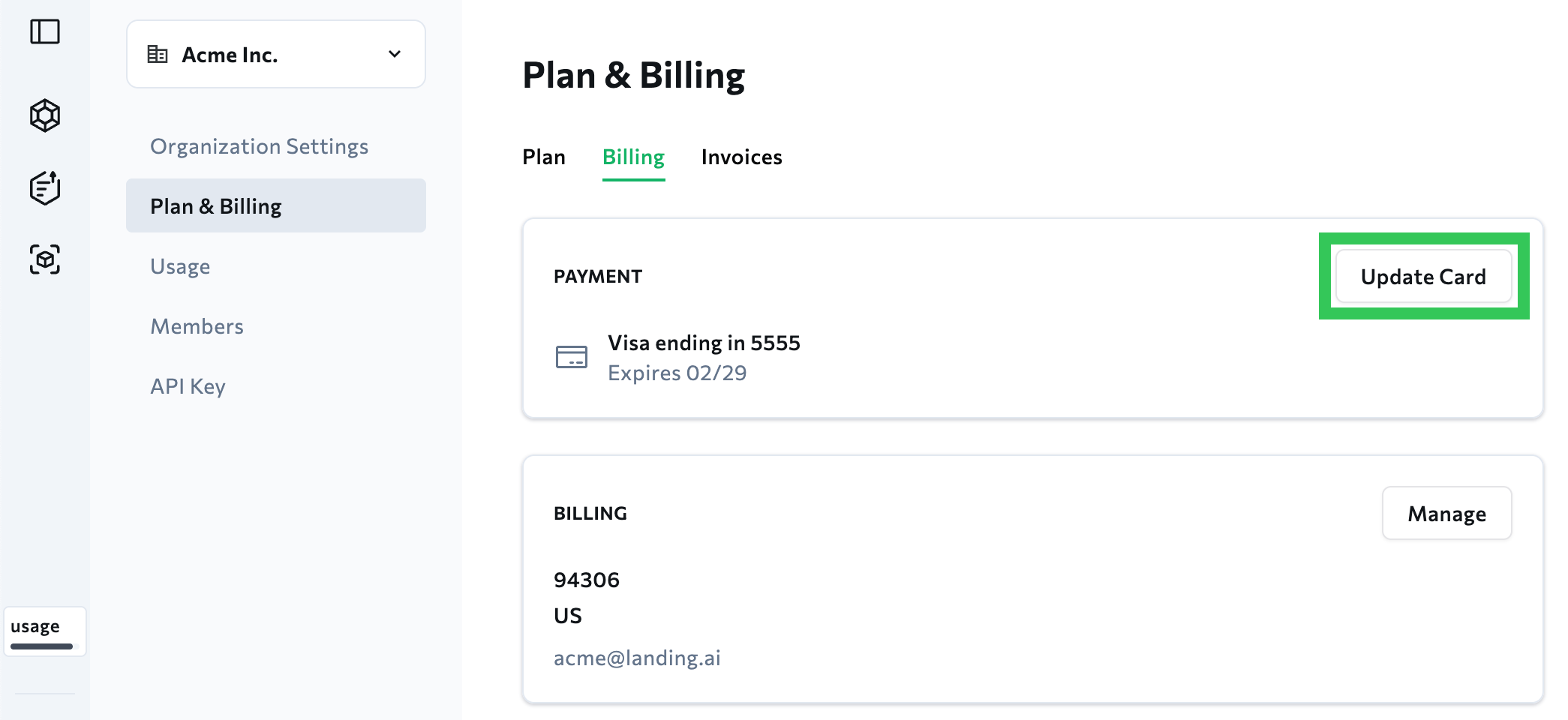
  5. To update your credit card information, click **Update Card**. Update your information in the pop-up window and click **Save card**.
       <img src="https://mintcdn.com/landingaitest/9PL6QctkQhoItuA6/images/ade-update-card.png?fit=max&auto=format&n=9PL6QctkQhoItuA6&q=85&s=edb909a96697361b360428cbdc3e057e" alt="Update Card" width="2090" height="960" data-path="images/ade-update-card.png" />
  6. To update your billing address, click **Manage**. This opens your billing information in Stripe.
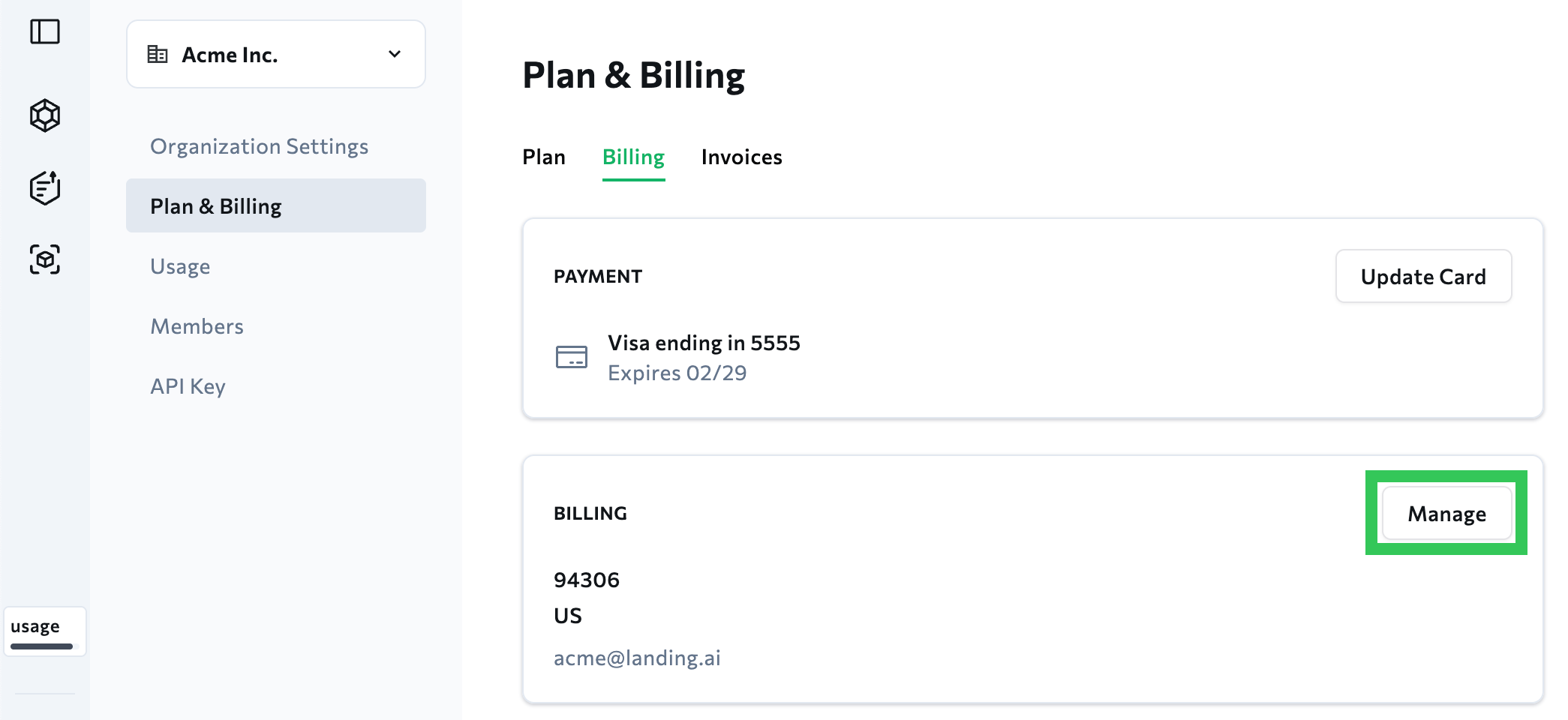
       <img src="https://mintcdn.com/landingaitest/-8scdGqjs7RndAys/images/ade-manage-billing-1.png?fit=max&auto=format&n=-8scdGqjs7RndAys&q=85&s=c871be2f2c8425004d7e405aa0339c66" alt="Manage Billing" width="2090" height="960" data-path="images/ade-manage-billing-1.png" />
  7. Click **Update Information**. Update your billing information and click **Save**.
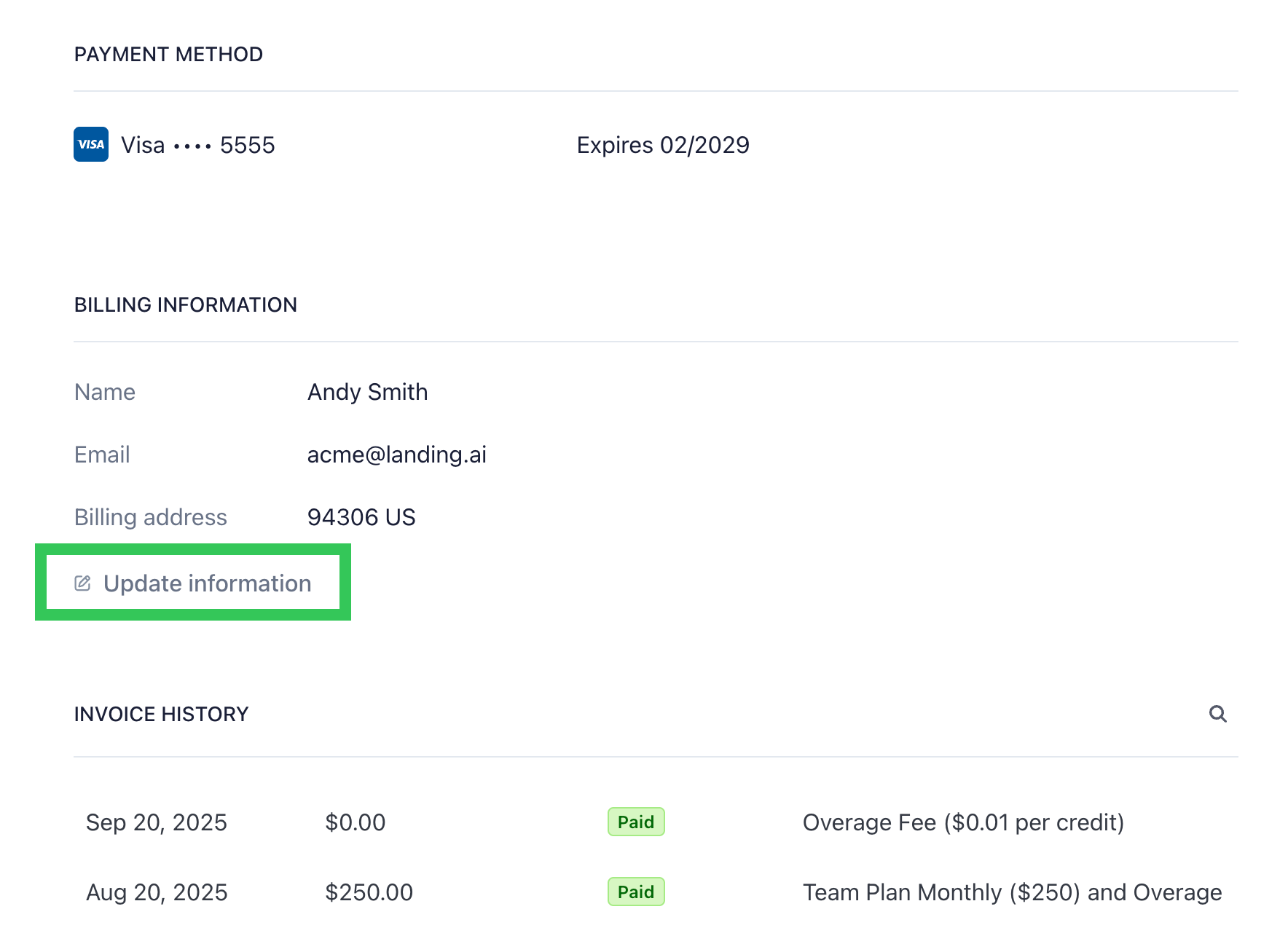
       <img src="https://mintcdn.com/landingaitest/-8scdGqjs7RndAys/images/ade-manage-billing-2.png?fit=max&auto=format&n=-8scdGqjs7RndAys&q=85&s=ce298ed35aafe44db58147e86fd806d0" alt="Update Billing Information" width="1768" height="1296" data-path="images/ade-manage-billing-2.png" />

  <Info>If you are on an Enterprise plan and need to update your payment information or billing address, contact [support@landing.ai](mailto:support@landing.ai).</Info>
</Accordion>

<Accordion title="Do you collect sales tax, VAT, or GST?">
  No. {companyName} does not collect or remit sales tax, VAT, or GST on invoices for {ade}. Our invoices are issued by a U.S. entity. If your local laws require tax on digital services, you are responsible for assessing, reporting, and paying any such taxes to your local authority (including reverse-charge where applicable).

  If you have questions about your obligations, please consult your tax advisor or local tax authority.
</Accordion>

<Accordion title="Can you add our VAT/GST ID to the invoice?">
  Not at this time. We do not display customer tax IDs on invoices.
</Accordion>

<Accordion title="Why isn’t VAT/GST shown on our invoice?">
  {companyName} is not currently registered to collect VAT/GST. Prices are quoted exclusive of taxes, and customers remain responsible for any taxes due locally (e.g., under reverse-charge rules).
</Accordion>

<Accordion title="Can you add or edit information on an invoice after it’s issued?">
  No. For compliance and audit integrity, issued invoices cannot be modified or reissued. Please make sure your billing profile is correct before your next invoice is created.
</Accordion>

<Accordion title="My plan isn’t listed on this page. Where can I find information about it?">
  Pricing plans change over time. This page documents only currently available plans. If you are on a plan that is no longer offered, you remain on your current plan. For questions, contact [support@landing.ai](mailto:support@landing.ai).
</Accordion>

### General Questions about Agentic Document Extraction

<Accordion title="Can ADE parse different languages?">
  Yes, ADE can parse text from multiple languages. To see the full list of supported languages, go to [Supported Languages](./ade-languages).
</Accordion>

<Accordion title="Can ADE parse handwritten text?">
  Yes, ADE can parse handwritten text, including handwritten text in different languages.
</Accordion>

<Accordion title="Is ADE compliant with HIPAA?">
  ADE supports HIPAA compliance on its Team and Enterprise plans. To ensure HIPAA compliance, you must:

  * Enable the Zero Data Retention (ZDR) option.
  * Have a signed Business Associate Agreement (BAA) in place with LandingAI. To initiate the BAA process, submit your request through the form on the [Organization Settings](https://va.landing.ai/settings/organization/general) page (available after ZDR is enabled).

  To learn more about our HIPAA compliance, check out our [Trust Center](https://trust.landing.ai/) and [Security & Compliance](https://landing.ai/security-at-landingai) page.
</Accordion>

<Accordion title="Does ADE support Zero Data Retention (ZDR)?">
  ADE supports zero data retention (ZDR) on its **Team** and **Enterprise** plans.

  To learn more about the ZDR option, check out [Zero Data Retention](./zdr).
</Accordion>

<Accordion title="Is ADE compliant with SOC2 Type II?">
  LandingAI is SOC 2 Type II compliant. To learn more, check out our [Trust Center](https://trust.landing.ai/) and [Security & Compliance](https://landing.ai/security-at-landingai) page.
</Accordion>
