> ## Documentation Index
> Fetch the complete documentation index at: https://docs.landing.ai/llms.txt
> Use this file to discover all available pages before exploring further.
# Schema Wizard: Build Extraction Schemas in the Playground
> Build and test an extraction schema visually with the Playground schema wizard.
export const splitJSON = 'split rules';
export const split = 'ADE Split';
export const adeTypeScriptLibrary = 'ade-typescript';
export const adePythonLibrary = 'ade-python';
export const dpt2 = 'DPT-2';
export const dpt1 = 'DPT-1';
export const dpt = 'Document Pre-Trained Transformer';
export const companyName = 'LandingAI';
export const buildExtract = 'ADE Build Extract Schema';
export const extract = 'ADE Extract';
export const parse = 'ADE Parse';
export const ade = 'Agentic Document Extraction';
Use the schema wizard in the [Playground](https://ade.landing.ai/demo/doc-extraction) to build and test an extraction schema. The schema defines which fields to extract from your documents and is used with the [{extract} API](./ade-extract).
You can also create a schema [manually](./ade-extract-schema-json) or with the [{buildExtract} API](./ade-extract-schema-api). The wizard is a good option if:
* You want the Playground to enforce schema rules and formatting requirements automatically, without needing to know them yourself
* You want immediate visual feedback on how the schema performs on your files
* You prefer a visual, guided experience over writing JSON directly
## Workflow
Use our AI-powered tools to generate a schema.
Update and edit the schema, and see how it works with your document.
Export your schema to use with our library or API.
All files and their corresponding schemas are saved to a project. You can access these in **Projects**.
## Create a Schema
* [Create a Schema with AI](#create-a-schema-with-ai)
* [Upload a Schema](#upload-a-schema)
### Create a Schema with AI
**Suggest Schema** calls the [{buildExtract} API](./ade-extract-schema-api) and consumes credits. See [Build Extract Schema API pricing](./ade-credit-consumption#credit-costs-for-the-build-extract-schema-api).
The Extract tool in the Playground generates a schema based on the files in your project. It factors in the data in the files and the file structures. Fields and layouts from each file are incorporated, so the schema covers variation across all the documents in the project.
To create an extraction schema:
1. Go to the [Playground](https://ade.landing.ai/).
2. Click the **Extract** tile.
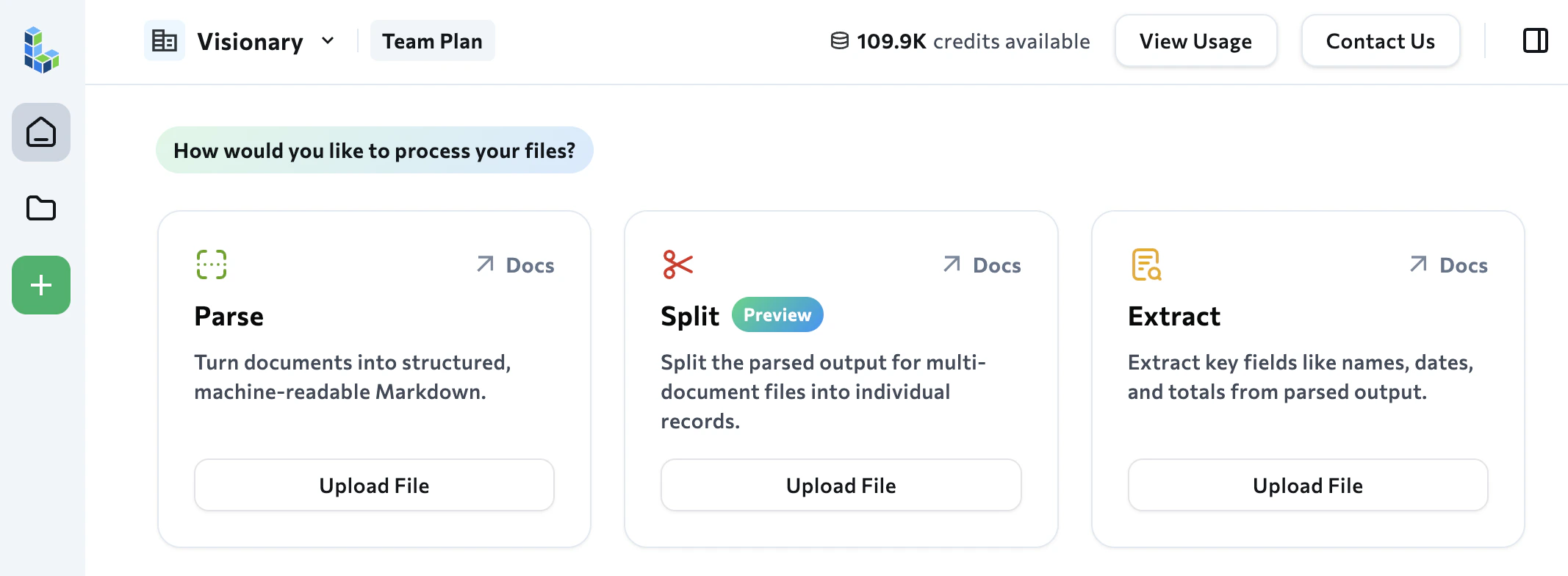 3. Upload files and click **Create Project**. (Continue to the next step while the files are parsed in the background.)
4. (Optional) Enter natural-language instructions for the extraction in the **Guidelines** text box. This can include:
* Data to include
* Data to exclude
* Context about the files
5. Click **Suggest Schema**.
3. Upload files and click **Create Project**. (Continue to the next step while the files are parsed in the background.)
4. (Optional) Enter natural-language instructions for the extraction in the **Guidelines** text box. This can include:
* Data to include
* Data to exclude
* Context about the files
5. Click **Suggest Schema**.
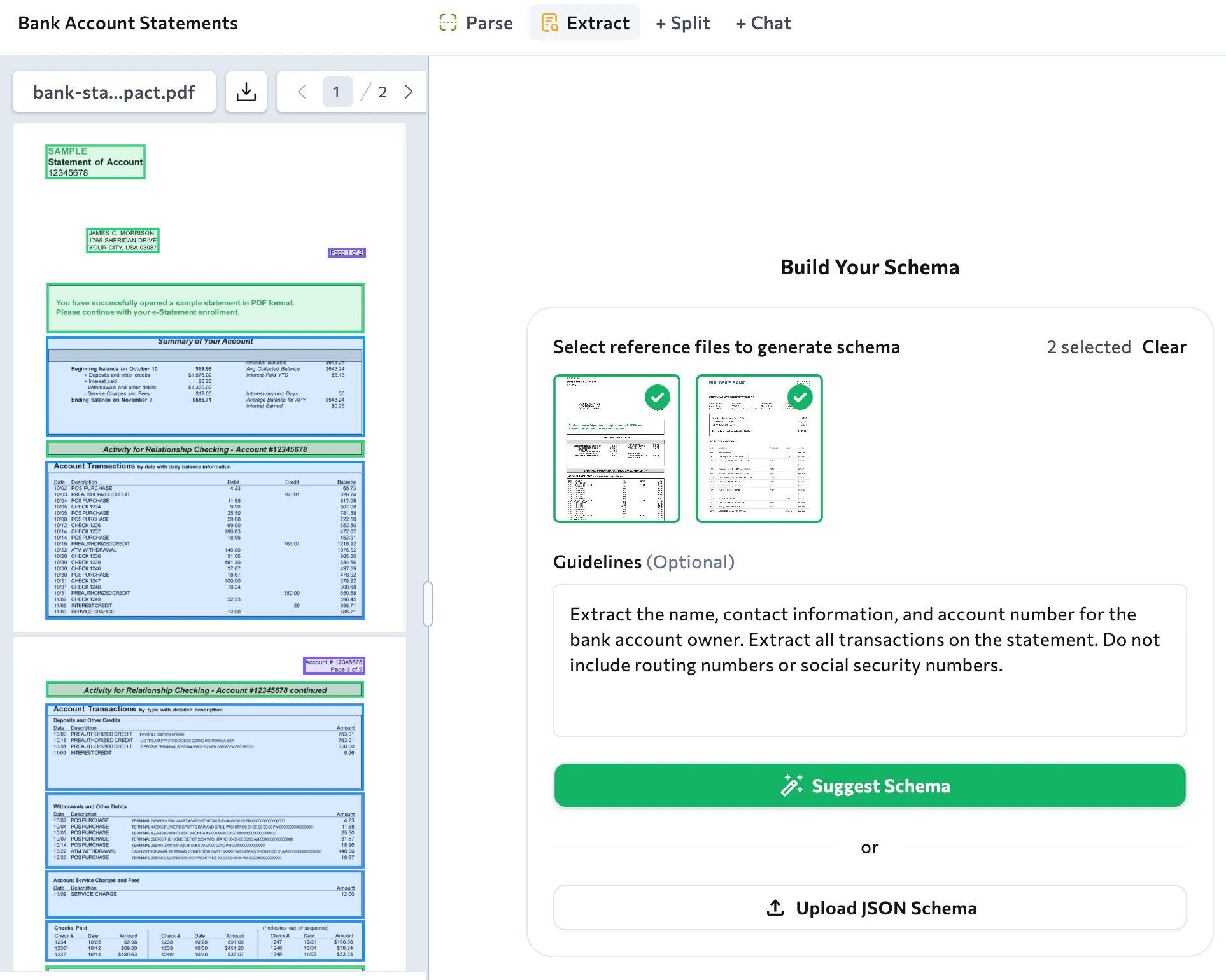 6. The app reviews the files in the project and creates a master schema. Review the generated fields before continuing.
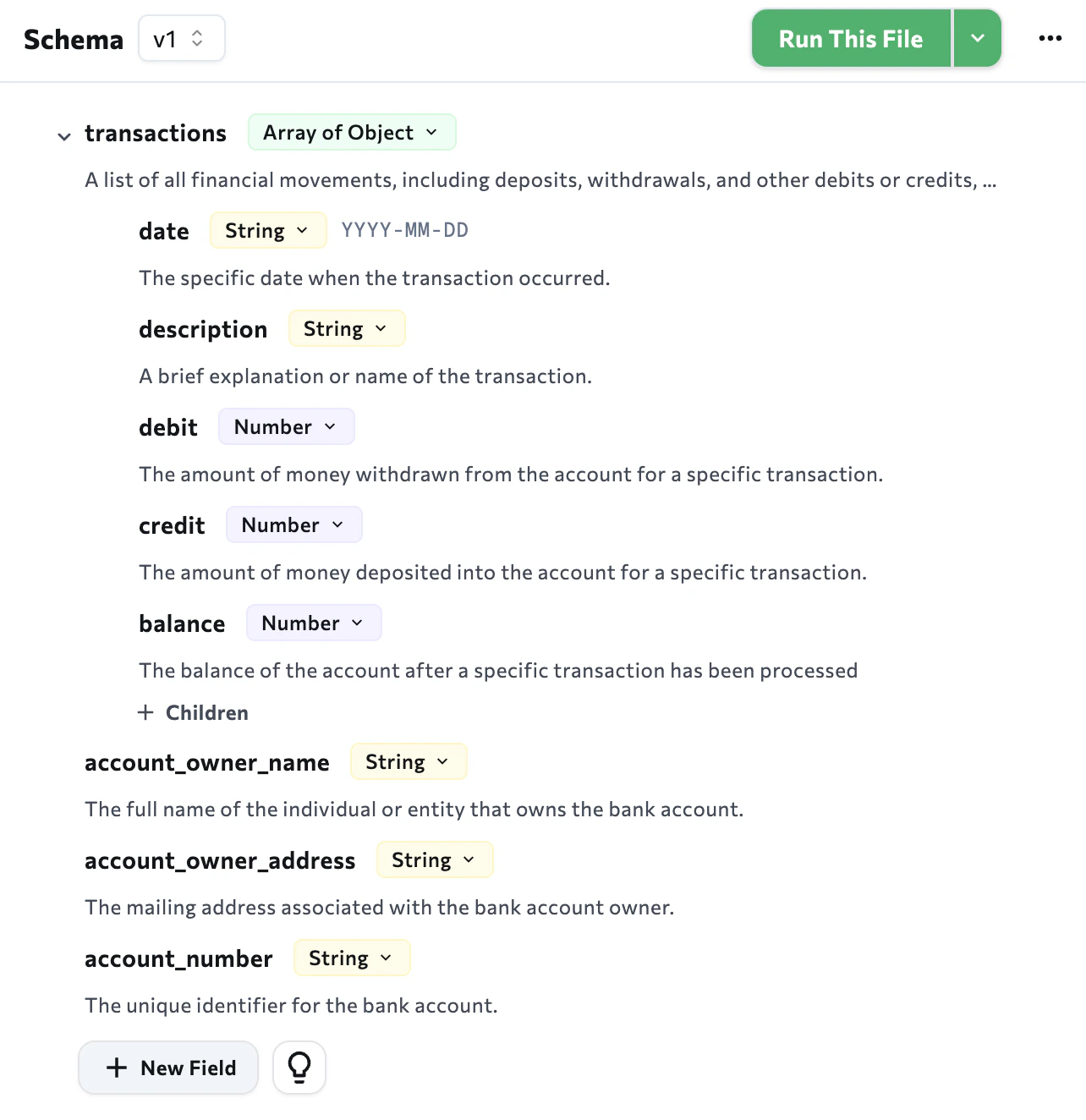 7. Click [**Run This File**](#run-the-schema-on-your-files) to validate the schema on the selected file.
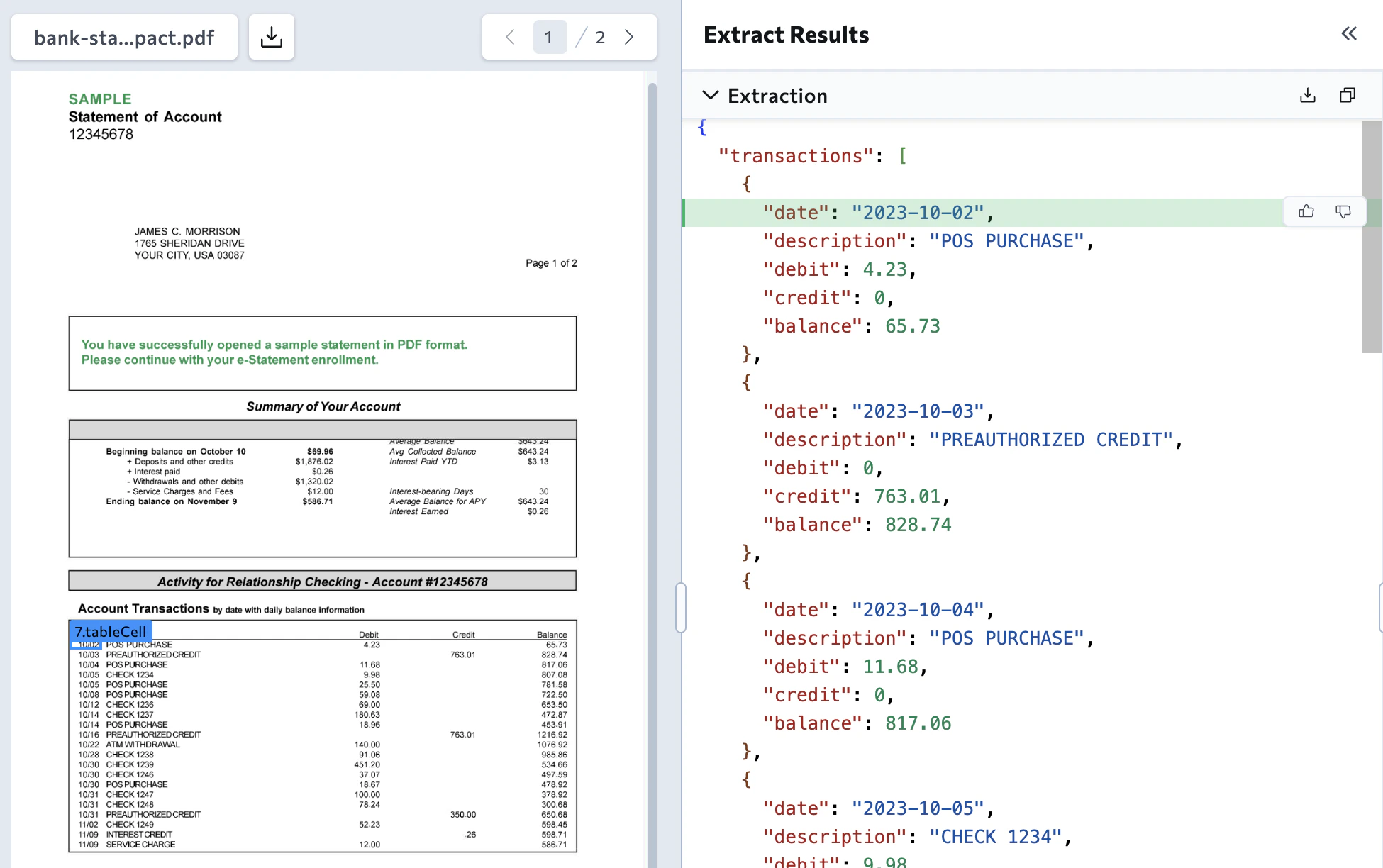 8. When the schema is ready, [use the schema](#use-the-schema).
### Upload a Schema
If you have an existing extraction schema you want to edit, you can upload it to the Playground to validate it. You can then edit it just like any schema created in the Playground.
**Start a new project with your own schema**
To start with your own extraction schema:
1. Go to the [Playground](https://ade.landing.ai/).
2. Click the **Extract** tile.
3. Upload files and click **Create Project**. (Continue to the next step while the files are parsed in the background.)
4. Click **Upload JSON Schema**.
5. Select the JSON file you want to load.
6. The app loads the JSON file into the **Schema** panel.
**Upload a schema to an existing project**
You can also upload a schema after you've started building one. The uploaded schema is saved as a new version.
To upload a schema to an existing project:
1. Go to the [Playground](https://ade.landing.ai/).
2. Open a project.
3. Click the **Extract** tab.
4. In the **Schema** panel, click **...** and select **Import Schema**.
8. When the schema is ready, [use the schema](#use-the-schema).
### Upload a Schema
If you have an existing extraction schema you want to edit, you can upload it to the Playground to validate it. You can then edit it just like any schema created in the Playground.
**Start a new project with your own schema**
To start with your own extraction schema:
1. Go to the [Playground](https://ade.landing.ai/).
2. Click the **Extract** tile.
3. Upload files and click **Create Project**. (Continue to the next step while the files are parsed in the background.)
4. Click **Upload JSON Schema**.
5. Select the JSON file you want to load.
6. The app loads the JSON file into the **Schema** panel.
**Upload a schema to an existing project**
You can also upload a schema after you've started building one. The uploaded schema is saved as a new version.
To upload a schema to an existing project:
1. Go to the [Playground](https://ade.landing.ai/).
2. Open a project.
3. Click the **Extract** tab.
4. In the **Schema** panel, click **...** and select **Import Schema**.
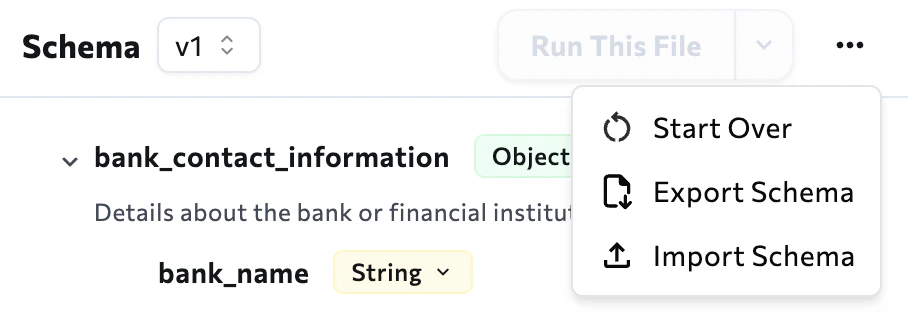 5. Select the JSON file you want to load.
6. The app loads the JSON file into the **Schema** panel.
## Edit and Validate the Schema
After creating a schema in the [Playground](https://ade.landing.ai/), you can edit and validate it. You can add fields, update descriptions, remove fields, and validate the full schema.
* [Edit, Add, or Remove Fields Manually](#edit-add-or-remove-fields-manually)
* [Refine Schema with AI](#refine-schema-with-ai)
* [Run the Schema on Your Files](#run-the-schema-on-your-files)
* [Start Over](#start-over)
### Edit, Add, or Remove Fields Manually
Click a field to see and edit additional information, like the format, description, and alternative names. For detailed information about the field options, go to [Extraction Schema (JSON)](./ade-extract-schema-json).
To add, edit, or remove fields:
1. Go to the [Playground](https://ade.landing.ai/).
2. Open a project.
3. Click the **Extract** tab.
4. If you have multiple versions of the schema, make sure that the schema you want to use is selected.
5. Make your changes:
* **Add a field**: Scroll to the bottom of the **Schema** panel and click **New Field**.
* **Edit a field**: Click the field and update it.
* **Remove a field**: Hover over the field and click the **Delete** icon.
6. After making any changes to the schema, click **Update Schema**.
### Refine Schema with AI
**Refine Schema** calls the [{buildExtract} API](./ade-extract-schema-api) and consumes credits. See [Build Extract Schema API pricing](./ade-credit-consumption#credit-costs-for-the-build-extract-schema-api).
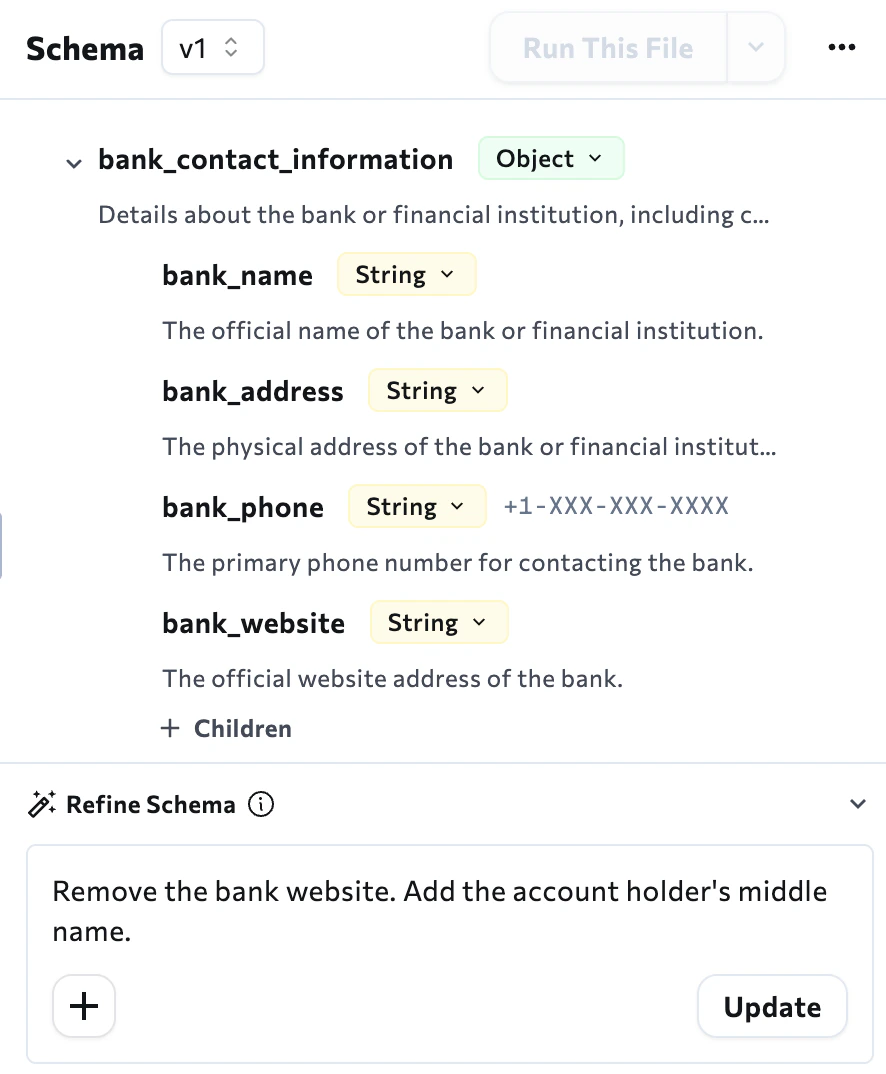
After creating a schema, you can edit it using the AI-powered "Refine Schema" tool.
To refine a schema using AI:
1. Go to the [Playground](https://ade.landing.ai/).
2. Open a project.
3. Click the **Extract** tab.
4. If you have multiple versions of the schema, make sure that the schema you want to use is selected.
5. You can do one or both of the following:
* Describe the edits you want to make in the **Refine Schema** text box.
* If you want to add more files that should be factored into the schema, click the **+** icon and select those files.
6. Click **Update**. The schema updates based on the input you provided.
5. Select the JSON file you want to load.
6. The app loads the JSON file into the **Schema** panel.
## Edit and Validate the Schema
After creating a schema in the [Playground](https://ade.landing.ai/), you can edit and validate it. You can add fields, update descriptions, remove fields, and validate the full schema.
* [Edit, Add, or Remove Fields Manually](#edit-add-or-remove-fields-manually)
* [Refine Schema with AI](#refine-schema-with-ai)
* [Run the Schema on Your Files](#run-the-schema-on-your-files)
* [Start Over](#start-over)
### Edit, Add, or Remove Fields Manually
Click a field to see and edit additional information, like the format, description, and alternative names. For detailed information about the field options, go to [Extraction Schema (JSON)](./ade-extract-schema-json).
To add, edit, or remove fields:
1. Go to the [Playground](https://ade.landing.ai/).
2. Open a project.
3. Click the **Extract** tab.
4. If you have multiple versions of the schema, make sure that the schema you want to use is selected.
5. Make your changes:
* **Add a field**: Scroll to the bottom of the **Schema** panel and click **New Field**.
* **Edit a field**: Click the field and update it.
* **Remove a field**: Hover over the field and click the **Delete** icon.
6. After making any changes to the schema, click **Update Schema**.
### Refine Schema with AI
**Refine Schema** calls the [{buildExtract} API](./ade-extract-schema-api) and consumes credits. See [Build Extract Schema API pricing](./ade-credit-consumption#credit-costs-for-the-build-extract-schema-api).
After creating a schema, you can edit it using the AI-powered "Refine Schema" tool.
To refine a schema using AI:
1. Go to the [Playground](https://ade.landing.ai/).
2. Open a project.
3. Click the **Extract** tab.
4. If you have multiple versions of the schema, make sure that the schema you want to use is selected.
5. You can do one or both of the following:
* Describe the edits you want to make in the **Refine Schema** text box.
* If you want to add more files that should be factored into the schema, click the **+** icon and select those files.
6. Click **Update**. The schema updates based on the input you provided.
 ### Run the Schema on Your Files
**Run This File** calls the [{extract} API](./ade-extract) and consumes credits. See [Extract API pricing](./ade-credit-consumption#credit-costs-for-the-extract-api).
Run the schema on one or more files to validate that it extracts the expected data.
To run the schema:
1. Go to the [Playground](https://ade.landing.ai/).
2. Open a project.
3. Click the **Extract** tab.
4. In the **Files** panel, select the file you want to run the schema on.
5. If you have multiple versions of the schema, make sure that the schema you want to use is selected.
6. Click **Run This File**.
### Run the Schema on Your Files
**Run This File** calls the [{extract} API](./ade-extract) and consumes credits. See [Extract API pricing](./ade-credit-consumption#credit-costs-for-the-extract-api).
Run the schema on one or more files to validate that it extracts the expected data.
To run the schema:
1. Go to the [Playground](https://ade.landing.ai/).
2. Open a project.
3. Click the **Extract** tab.
4. In the **Files** panel, select the file you want to run the schema on.
5. If you have multiple versions of the schema, make sure that the schema you want to use is selected.
6. Click **Run This File**.
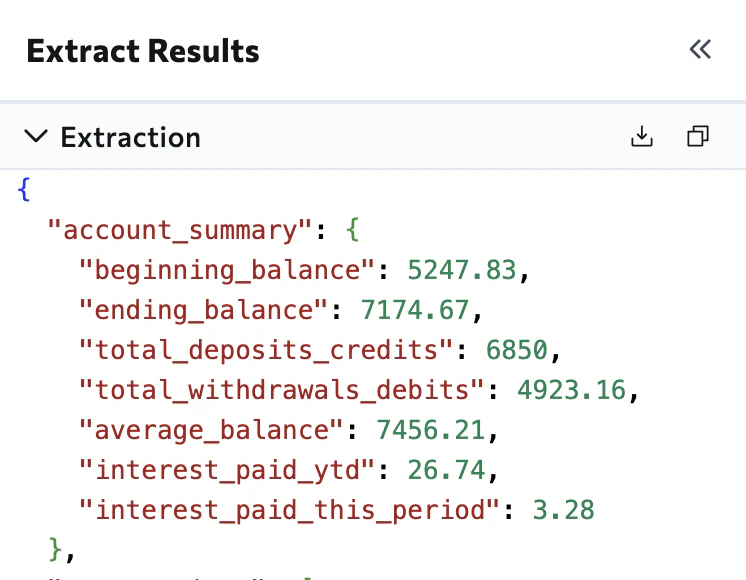
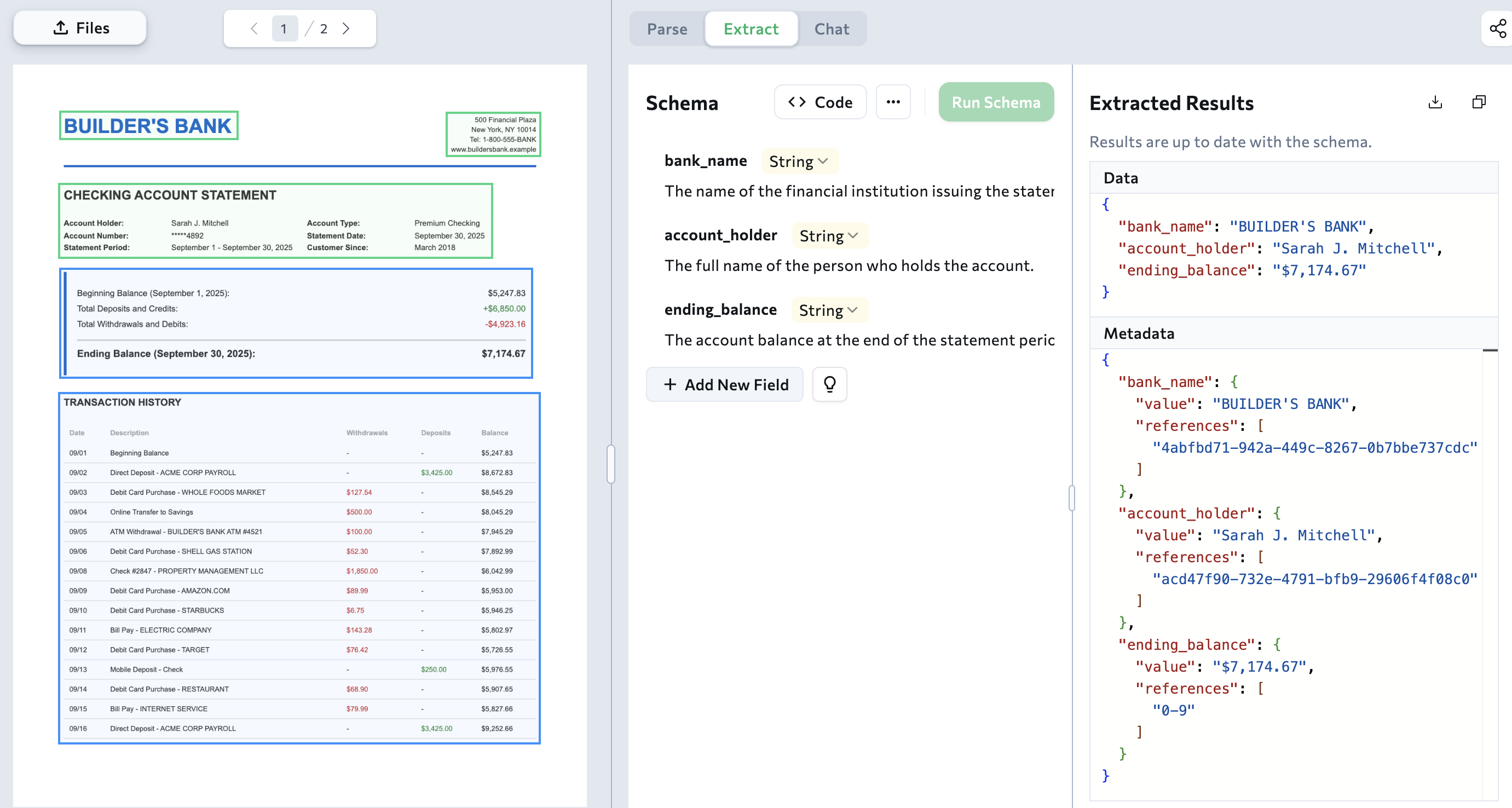
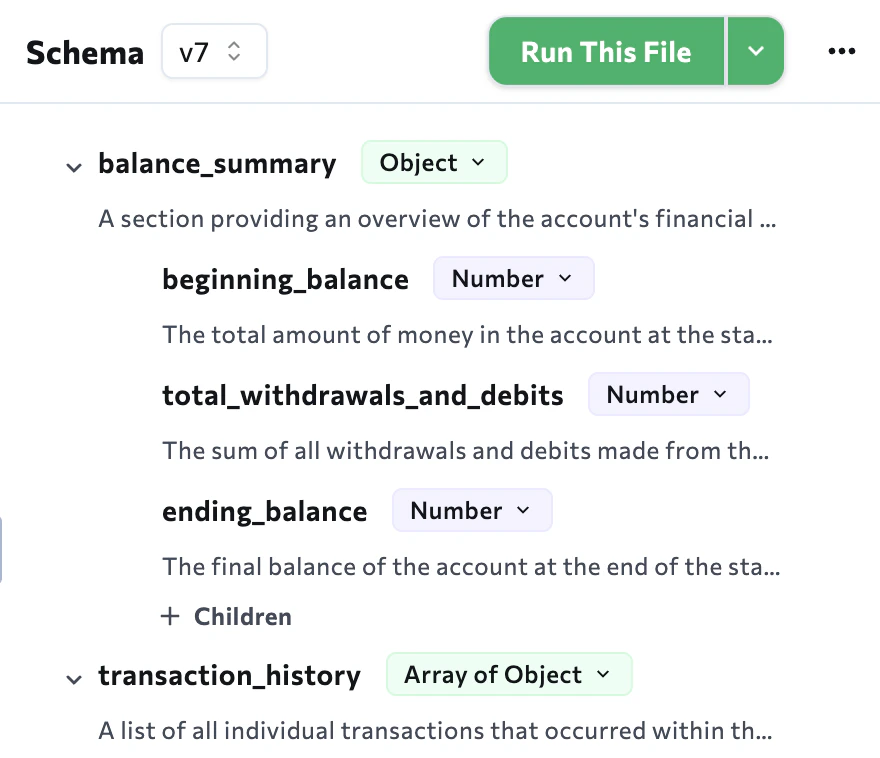 The **Extracted Results** panel refreshes and displays two sets of content:
* **Extraction**: The list of extracted key-value pairs.
* **Extract Metadata**: The key-value pairs and their unique IDs (`references`).
For more information about extraction output, go to [JSON Response for Extraction](./ade-extract-response).
The **Extracted Results** panel refreshes and displays two sets of content:
* **Extraction**: The list of extracted key-value pairs.
* **Extract Metadata**: The key-value pairs and their unique IDs (`references`).
For more information about extraction output, go to [JSON Response for Extraction](./ade-extract-response).
 ### Start Over
After you create a schema, you can start over. This creates a new blank schema, saved as the next version, while retaining all existing schema versions. You can then manually add fields, refine the schema with AI, or import a schema.
To start over:
1. Go to the [Playground](https://ade.landing.ai/).
2. Open a project.
3. Click the **Extract** tab.
4. In the **Schema** panel, click **...** and select **Start Over**.
5. When prompted, click **Start Fresh**.
## Use the Schema
After you create and validate a schema, you are ready to use it.
* [Get a Ready-to-Use Parse and Extract Script](#get-a-ready-to-use-parse-and-extract-script): Get a ready-to-use script for Parse and Extract that uses the schema you created.
* [Export the Schema](#export-the-schema): Download the schema as a JSON file to use in your own code.
### Get a Ready-to-Use Parse and Extract Script
After you create a schema, {ade} generates a script that covers both the [{parse}](./parse) and [{extract}](./ade-extract) steps using the schema you built. The Playground provides two versions: one for calling the APIs directly, and one for the [{adePythonLibrary} library](./ade-python).
**To get the script:**
1. Go to the [Playground](https://ade.landing.ai/).
2. Open a project.
3. Click the **Extract** tab.
4. If you have multiple versions of the schema, make sure that the schema you want to use is selected.
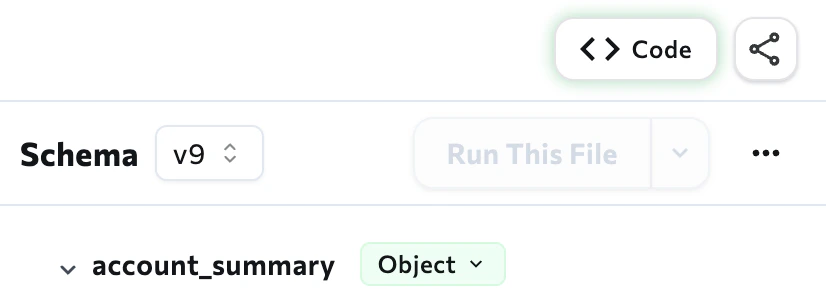
5. Click **Code**.
### Start Over
After you create a schema, you can start over. This creates a new blank schema, saved as the next version, while retaining all existing schema versions. You can then manually add fields, refine the schema with AI, or import a schema.
To start over:
1. Go to the [Playground](https://ade.landing.ai/).
2. Open a project.
3. Click the **Extract** tab.
4. In the **Schema** panel, click **...** and select **Start Over**.
5. When prompted, click **Start Fresh**.
## Use the Schema
After you create and validate a schema, you are ready to use it.
* [Get a Ready-to-Use Parse and Extract Script](#get-a-ready-to-use-parse-and-extract-script): Get a ready-to-use script for Parse and Extract that uses the schema you created.
* [Export the Schema](#export-the-schema): Download the schema as a JSON file to use in your own code.
### Get a Ready-to-Use Parse and Extract Script
After you create a schema, {ade} generates a script that covers both the [{parse}](./parse) and [{extract}](./ade-extract) steps using the schema you built. The Playground provides two versions: one for calling the APIs directly, and one for the [{adePythonLibrary} library](./ade-python).
**To get the script:**
1. Go to the [Playground](https://ade.landing.ai/).
2. Open a project.
3. Click the **Extract** tab.
4. If you have multiple versions of the schema, make sure that the schema you want to use is selected.
5. Click **Code**.
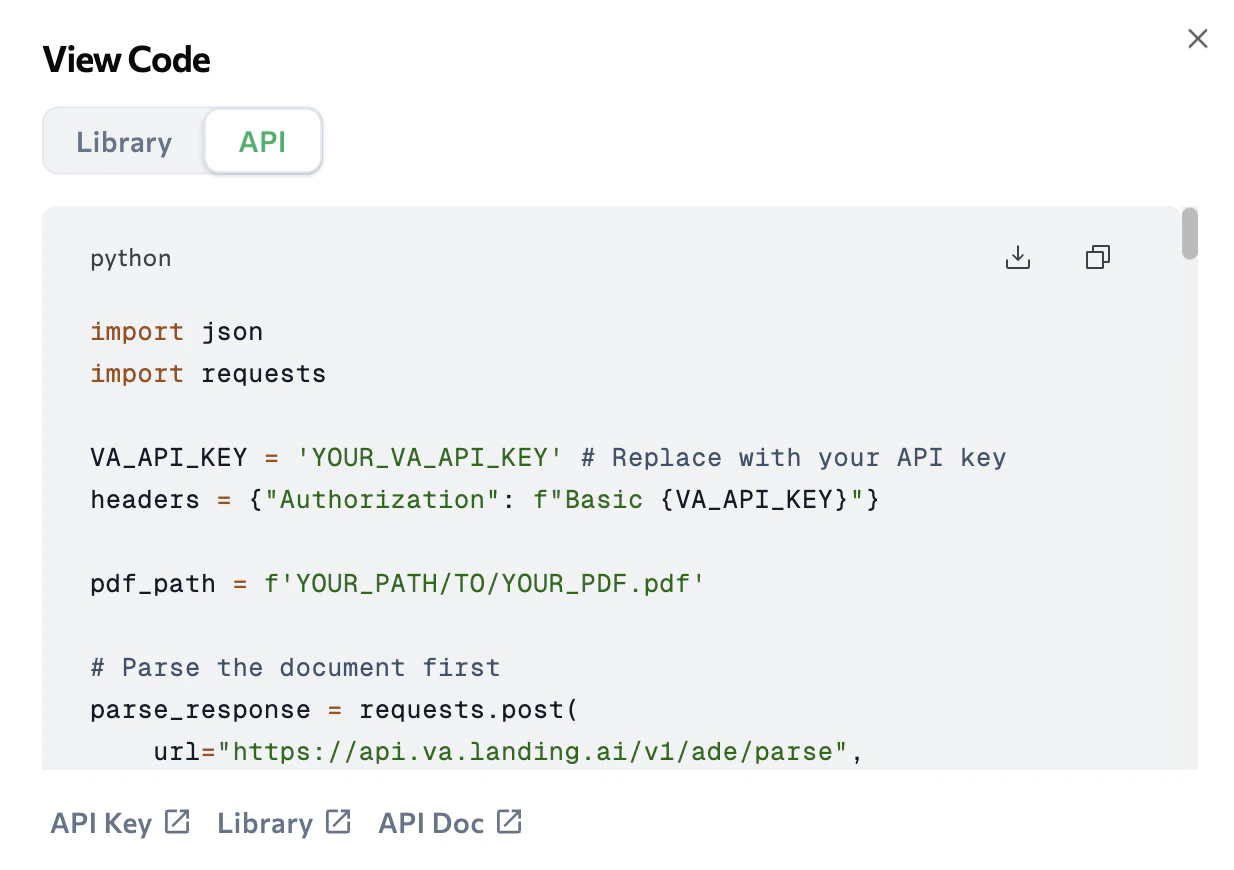
 6. The **View Code** pop-up opens. Click the **Library** or **API** tab to see the code for each extraction method.
7. Click the **Download** or **Copy** buttons to get the code.
6. The **View Code** pop-up opens. Click the **Library** or **API** tab to see the code for each extraction method.
7. Click the **Download** or **Copy** buttons to get the code.
 ### Export the Schema
After you create a schema, you can export it as a downloadable JSON file to use in your own code.
**To export the schema:**
1. Go to the [Playground](https://ade.landing.ai/).
2. Open a project.
3. Click the **Extract** tab.
4. If you have multiple versions of the schema, make sure that the schema you want to use is selected.
5. In the **Schema** panel, click **...** and select **Export Schema**.
6. The extraction schema is downloaded as a JSON file.
## Schema Versions
The Playground saves a new version of the schema each time you run **Suggest Schema**, **Refine Schema**, or import a schema. Previous versions are retained even after you use **Start Over**.
Use schema versions to compare results or roll back to an earlier version if a schema update doesn't perform as expected.
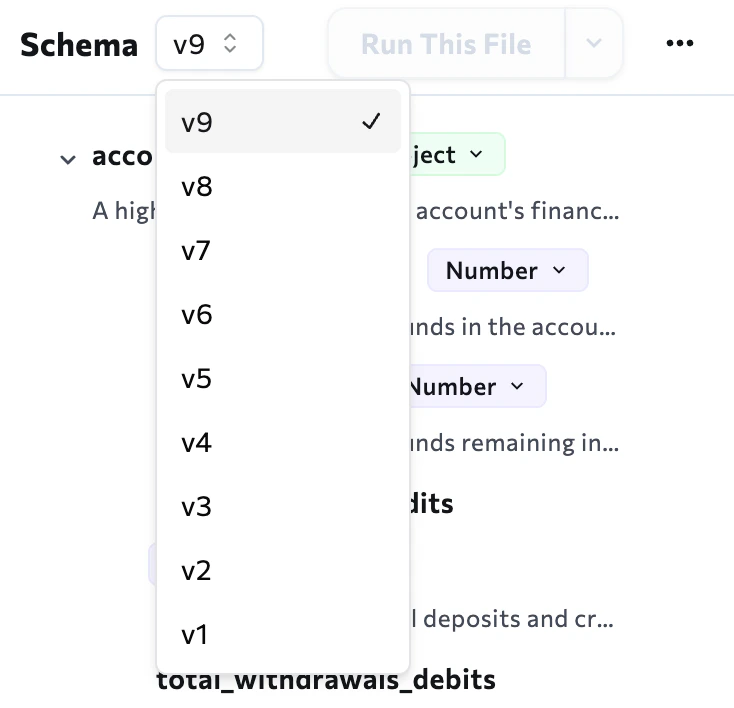
To view a previous version, click the drop-down menu in the **Schema** panel and select the version you want to see.
### Export the Schema
After you create a schema, you can export it as a downloadable JSON file to use in your own code.
**To export the schema:**
1. Go to the [Playground](https://ade.landing.ai/).
2. Open a project.
3. Click the **Extract** tab.
4. If you have multiple versions of the schema, make sure that the schema you want to use is selected.
5. In the **Schema** panel, click **...** and select **Export Schema**.
6. The extraction schema is downloaded as a JSON file.
## Schema Versions
The Playground saves a new version of the schema each time you run **Suggest Schema**, **Refine Schema**, or import a schema. Previous versions are retained even after you use **Start Over**.
Use schema versions to compare results or roll back to an earlier version if a schema update doesn't perform as expected.
To view a previous version, click the drop-down menu in the **Schema** panel and select the version you want to see.
 ## Download or Copy Extracted Data
You can download or copy extracted data directly from the Playground. This is useful for spot-checking results during schema development. For production use, retrieve extracted data through the [{extract} API](./ade-extract) or [{adePythonLibrary} library](./ade-python).
To download or copy the extracted data:
1. Go to the [Playground](https://ade.landing.ai/).
2. Open a project.
3. Click the **Extract** tab.
4. If the **Extracted Results** panel doesn't display, create or edit a schema and click **Run This File**.
5. Click the **Download** or **Copy** buttons to get the extracted data.
## Download or Copy Extracted Data
You can download or copy extracted data directly from the Playground. This is useful for spot-checking results during schema development. For production use, retrieve extracted data through the [{extract} API](./ade-extract) or [{adePythonLibrary} library](./ade-python).
To download or copy the extracted data:
1. Go to the [Playground](https://ade.landing.ai/).
2. Open a project.
3. Click the **Extract** tab.
4. If the **Extracted Results** panel doesn't display, create or edit a schema and click **Run This File**.
5. Click the **Download** or **Copy** buttons to get the extracted data.