> ## Documentation Index
> Fetch the complete documentation index at: https://docs.landing.ai/llms.txt
> Use this file to discover all available pages before exploring further.
# Classify
> Label each page of a document by type to route pages before parsing (Preview).
export const classify = 'ADE Classify';
export const splitJSON = 'split rules';
export const split = 'ADE Split';
export const adePythonLibrary = 'ade-python';
export const dpt2mini = 'DPT-2 mini';
export const dpt2 = 'DPT-2';
export const dpt1 = 'DPT-1';
export const dpt = 'Document Pre-Trained Transformer';
export const companyName = 'LandingAI';
export const extract = 'ADE Extract';
export const parse = 'ADE Parse';
export const ade = 'Agentic Document Extraction';
Use the [{classify} API](https://docs.landing.ai/api-reference/tools/ade-classify) to classify each page in a document by type. You provide a document and a list of classes, and the API assigns a class to each page.
Use those classes to decide how to handle each page downstream, for example which pages to parse, how to split a batch, or which extraction schema to apply.
{classify} is in Preview. This feature is still in development and may not return accurate results. Do not use this feature in production environments.
## Example Use Cases
* **Financial Services**: Financial institutions receiving batches of mixed documents can classify pages to identify bank statements, utility bills, and identification documents before routing them to the appropriate processing pipeline.
* **Healthcare**: Healthcare systems ingesting patient records can classify pages to identify intake forms, pathology reports, and medication lists before parsing or extraction.
* **Legal**: Legal teams processing incoming documents can classify pages by section type (for example, cover page, terms, signature page) before routing each page to the appropriate review workflow.
* **Insurance**: Insurance companies receiving claim submissions can classify pages to identify claim forms, invoices, and medical records before extraction.
For credit consumption rates, see [Credit Consumption](./ade-credit-consumption#credit-costs-for-the-classify-api).
## Process Overview
Follow these steps to classify pages in a document:
1. **Define your class list** by creating the classes that describe the page types in your document. Learn more about [Classes](#classes).
2. **Classify your document** using the [{classify} API](https://docs.landing.ai/api-reference/tools/ade-classify). Pass your document and class list. All pages are classified concurrently.
3. **Use the classification results** in your downstream workflows. Route pages to [Parse](./parse), [Split](./ade-split), [Extract](./ade-extract), or other systems based on the class assigned to each page. Learn more about the [response structure](./ade-classify-response).
## Classes
A class is an object with a required `class` name and an optional `description`.
Include a description when the class name alone may be ambiguous (for example, `"spec"` vs `"manual"`). You can omit the description when the name is self-explanatory.
You can mix classes with and without descriptions in the same request.
## Classify in the Playground
Use the [Playground](https://ade.landing.ai) to build and test classification classes before incorporating them into your code. Upload a document, define your classes, and validate the results.
When the pages are classified as expected, use the downloaded classes with the [API](#classify-with-the-api), [Python library](./ade-python#classify-getting-started), or [TypeScript library](./ade-typescript#classify-getting-started) to classify documents at scale.
1. Go to the [Playground](https://ade.landing.ai).
2. Select the file you want to classify.
3. Click **Classify**.
4. Click **Define Classes**.
5. List or describe the classes you want to apply to the pages and click **Suggest Classes**. (To create the class schema yourself, click **Start from Scratch**.)
6. The app generates classes and class descriptions based on your input. Review the generated classes and descriptions before continuing.
7. Click **Classify** to validate the classes on the selected file. (Click the drop-down menu to select whether to classify the **Current File**, **All Files**, or **Custom**.)
8. Review the results. If needed, continue editing the classes and their descriptions.
9. When the pages are classified as expected, [get a ready-to-use script for classification](#get-a-ready-to-use-classify-script) or [download the class schema](#export-the-class-schema-to-json) to use in your own code.
### Get a Ready-to-Use Classify Script
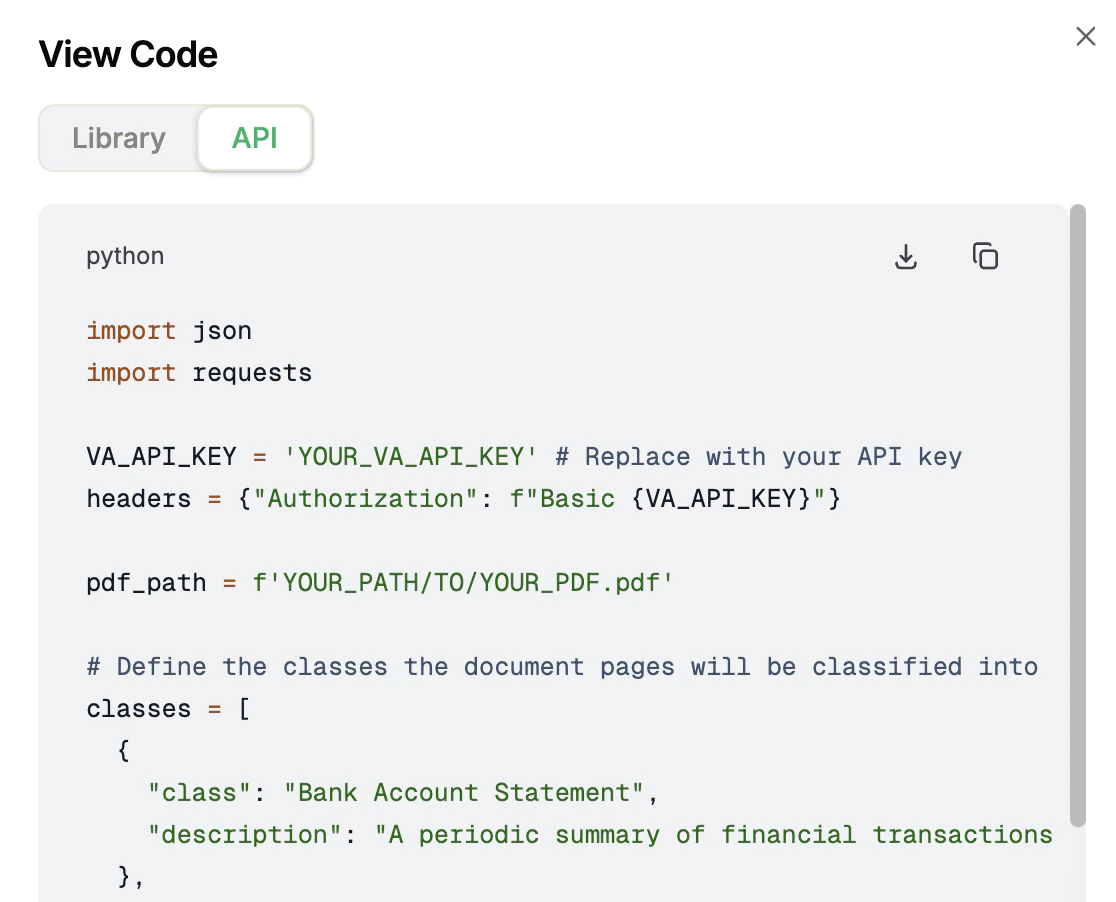
After you create a class schema, {ade} generates a script to classify files based on the class schema you created. The Playground provides two versions: one for calling the API directly, and one for the [{adePythonLibrary} library](./ade-python).
**To get the script:**
1. Go to the [Playground](https://ade.landing.ai/).
2. Open a project.
3. Click the **Classify** tab.
4. Click **Get Code**.
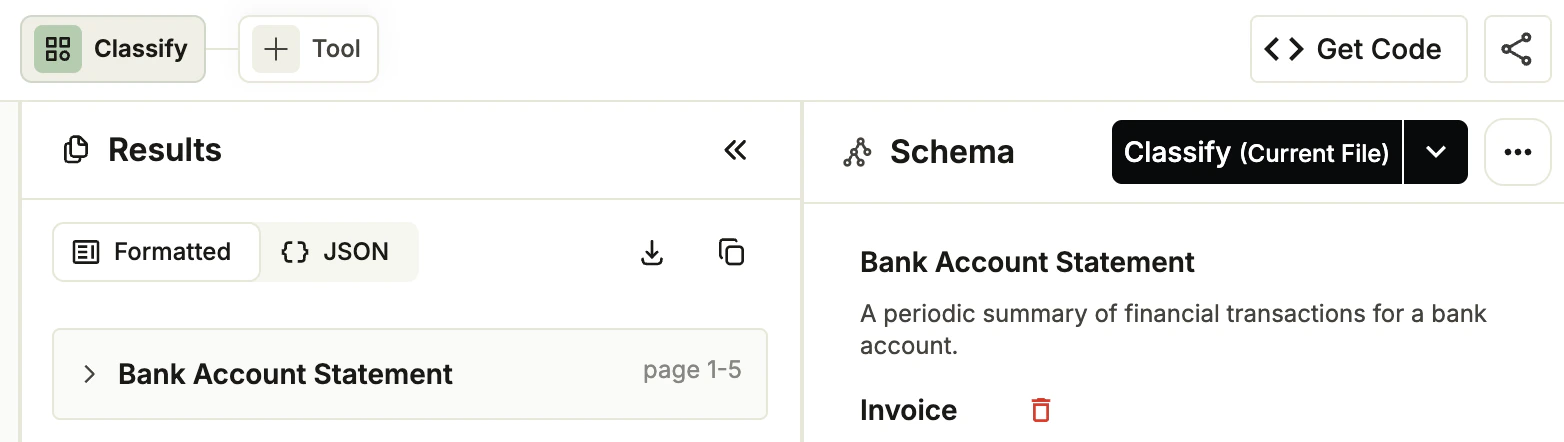 5. The **View Code** pop-up opens. Click the **Library** or **API** tab to see the code for each method.
6. Click the **Download** or **Copy** buttons to get the code.
5. The **View Code** pop-up opens. Click the **Library** or **API** tab to see the code for each method.
6. Click the **Download** or **Copy** buttons to get the code.
 ### Export the Class Schema to JSON
After you create a class schema, you can export it as a JSON file that you can pass to the `classes` parameter in the [API](#classify-with-the-api), [Python library](./ade-python#classify-getting-started), or [TypeScript library](./ade-typescript#classify-getting-started).
**To export the schema:**
1. Go to the [Playground](https://ade.landing.ai/).
2. Open a project.
3. Click the **Classify** tab.
4. In the **Schema** panel, click **...** and select **Download Classes**. The classes and descriptions are downloaded as a JSON file.
## Classify with the API
Classify the pages in a document by calling the [{classify}](https://docs.landing.ai/api-reference/tools/ade-classify) endpoint.
This example classifies a document that may contain invoices, bank statements, and earnings statements. The `invoice` and `bank_statement` classes include descriptions; `earnings statement` does not.
```shell theme={null}
curl -X POST 'https://api.va.landing.ai/v1/ade/classify' \
-H 'Authorization: Bearer YOUR_API_KEY' \
-F 'classes=[{"class":"invoice","description":"A commercial bill with line items, totals, and payment terms"},{"class":"bank_statement","description":"A monthly summary of account transactions"},{"class":"earnings statement"}]' \
-F 'document=@document.pdf'
```
### Parameters
Get the full parameters from the [API reference](https://docs.landing.ai/api-reference/tools/ade-classify).
| Parameter | Required | Description |
| -------------- | --------------------- | --------------------------------------------------------------------------------------------------------------------------------------------- |
| `document` | Required (choose one) | The document file to classify. |
| `document_url` | Required (choose one) | A URL pointing to the document to classify. |
| `classes` | Required | A JSON array of class objects. Each object requires a `class` name and accepts an optional `description`. Pass as a JSON string in form data. |
| `model` | Optional | The classification model version to use (for example, `classify-20260420`). Defaults to the latest version. |
## Use Classify with Our Libraries
Click one of the tiles below to learn how to use the [{classify}](https://docs.landing.ai/api-reference/tools/ade-classify) API with our libraries.
Use {classify} with our Python library.
### Export the Class Schema to JSON
After you create a class schema, you can export it as a JSON file that you can pass to the `classes` parameter in the [API](#classify-with-the-api), [Python library](./ade-python#classify-getting-started), or [TypeScript library](./ade-typescript#classify-getting-started).
**To export the schema:**
1. Go to the [Playground](https://ade.landing.ai/).
2. Open a project.
3. Click the **Classify** tab.
4. In the **Schema** panel, click **...** and select **Download Classes**. The classes and descriptions are downloaded as a JSON file.
## Classify with the API
Classify the pages in a document by calling the [{classify}](https://docs.landing.ai/api-reference/tools/ade-classify) endpoint.
This example classifies a document that may contain invoices, bank statements, and earnings statements. The `invoice` and `bank_statement` classes include descriptions; `earnings statement` does not.
```shell theme={null}
curl -X POST 'https://api.va.landing.ai/v1/ade/classify' \
-H 'Authorization: Bearer YOUR_API_KEY' \
-F 'classes=[{"class":"invoice","description":"A commercial bill with line items, totals, and payment terms"},{"class":"bank_statement","description":"A monthly summary of account transactions"},{"class":"earnings statement"}]' \
-F 'document=@document.pdf'
```
### Parameters
Get the full parameters from the [API reference](https://docs.landing.ai/api-reference/tools/ade-classify).
| Parameter | Required | Description |
| -------------- | --------------------- | --------------------------------------------------------------------------------------------------------------------------------------------- |
| `document` | Required (choose one) | The document file to classify. |
| `document_url` | Required (choose one) | A URL pointing to the document to classify. |
| `classes` | Required | A JSON array of class objects. Each object requires a `class` name and accepts an optional `description`. Pass as a JSON string in form data. |
| `model` | Optional | The classification model version to use (for example, `classify-20260420`). Defaults to the latest version. |
## Use Classify with Our Libraries
Click one of the tiles below to learn how to use the [{classify}](https://docs.landing.ai/api-reference/tools/ade-classify) API with our libraries.
Use {classify} with our Python library.

 }
href="./ade-typescript#classify-getting-started"
>
Use {classify} with our TypeScript library.
## Supported File Types
The {classify} API supports all file types that Parse supports, except spreadsheets (CSV, XLSX), up to 200 MB. For the full list, see [Supported File Types](./ade-file-types).
## Share Your Feedback
{classify} is in public preview and we are actively looking for feedback to improve it. To share your experience, [schedule a feedback session with us](https://landing-ai.zoom.us/zbook/landingai-fatimasalehbhai/landingai-ade-feedback).
Come prepared to discuss:
* What is working well
* Any challenges you've encountered and how the feature could improve
* The email address for your {ade} account, found in your [profile page](https://ade.landing.ai/settings/personal/profile)
* The documents you used
* The code you used
}
href="./ade-typescript#classify-getting-started"
>
Use {classify} with our TypeScript library.
## Supported File Types
The {classify} API supports all file types that Parse supports, except spreadsheets (CSV, XLSX), up to 200 MB. For the full list, see [Supported File Types](./ade-file-types).
## Share Your Feedback
{classify} is in public preview and we are actively looking for feedback to improve it. To share your experience, [schedule a feedback session with us](https://landing-ai.zoom.us/zbook/landingai-fatimasalehbhai/landingai-ade-feedback).
Come prepared to discuss:
* What is working well
* Any challenges you've encountered and how the feature could improve
* The email address for your {ade} account, found in your [profile page](https://ade.landing.ai/settings/personal/profile)
* The documents you used
* The code you used